
A Speed Violation occurs when a vehicle moves above the set Speed Limit for longer than the Grace Period’s duration.
The Speed Limit is either specific to an Organization, or a Geozone.
The Grace Period is the number of seconds you may drive above the set Speed Limit before being in Violation.
For learning more about Organization Speed Limits, please refer to this article.
For learning more about Geozone Speed Limits, please refer to this article.
The Speed Violation report allows the users with Super Admin, and Manager access to view, export, and transfer up to two months (60 days) worth of Speed Violations, and their details.
To locate this report, Navigate to the “Reports” tab on the mynavistream.com website logging in as a Manager, or a Super Admin user.
Select the “Speed Violation” report under the “Speed Tracking” section either on the middle of the scream, or from the left side menu.

The report is composed of 4 sections:
Query
Quick Filters
Insights
Data Table
1. Query
In this section, you are able to select your Organization(s), and set up a Custom Date Range, or a Start Date, and an End Date for your desired time period.
Note that the system only allows fetching data for a maximum duration of 60 days.
Note that if you choose the “Custom Selection” option from the “Organization” box, you can select one, or multiple of your organization from the “Based On” box.

2. Violation Filters
In this section, you have the ability to filter your desired Driver(s), specific Vehicle(s), and specific Geozone(s) within your selected organization(s).

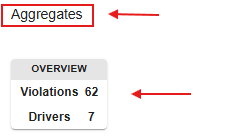
3. Aggregates
This section will show a summary of data for your selected Query, and Filters.
4. Data Table
This table displays Speed Violations and their details based on your Query and Filter selections. Note that Changes to the Query or Filters update the data table in real-time.
If you have multiple violations for a driver, the table will by default show them in a “Group”. You have the ability to expand or collapse a group by clicking on the  button beside each grouped row in the table. You also have the ability to remove all grouping by clicking on the x button of the “Grouping Active” box beside the Data Table’s search bar.

Once the group(s) is expanded, you can see the details of all Speed Violations in that group.
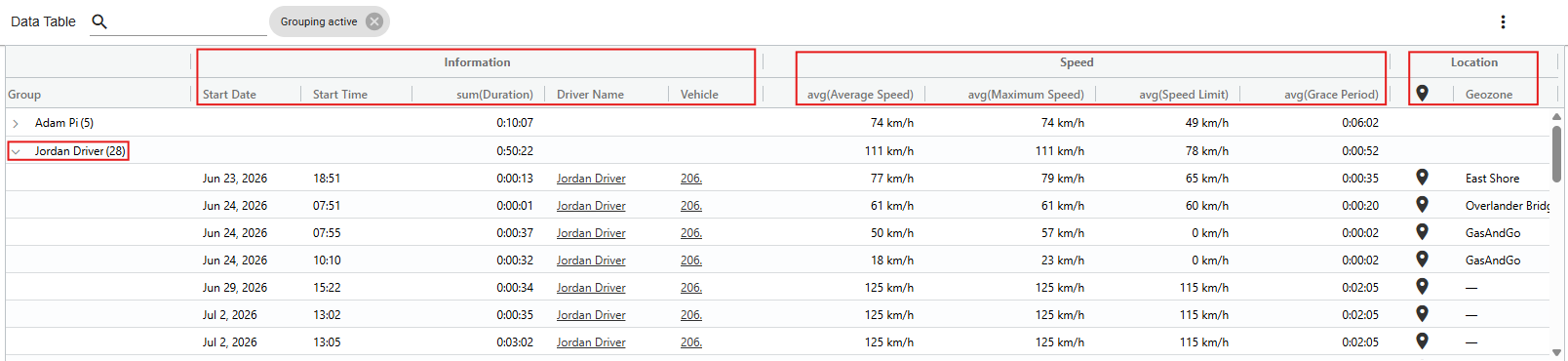
The Speed Violation details include:
Information
Group (Expanded): Will show you all Violations of a specific Driver in your selected date range.
Group (Collapsed): Will show you the Sums and averages of Violations for a specific Driver in your selected date range.
Start Date: Speed Violation occurrence date
Start Time: Speed Violation occurrence time. Note that speed violations are recorded only after the applicable grace period has elapsed.
Duration: Speed Violation’s duration.
Driver Name: The name of the driver.
Vehicle: Vehicle number
Speed
Average Speed: The average speed of the vehicle during the violation.
Maximum Speed: The maximum speed of the vehicle during the violation.
Speed Limit: Organization, or Geozone’s Speed Limit.
Grace Period: Organization, or Geozone’s Grace Period.
Location
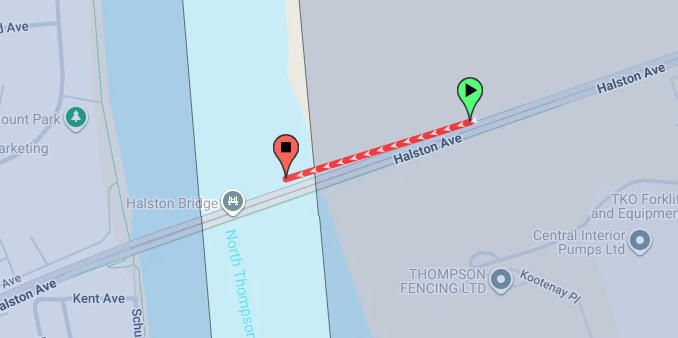
Map Icon
 : Displays the trip segment where the Speed Violation occurred.
Geozone: The name of the Geozone where the Speed Violation occurred.
- Once groups are expanded, you can sort the table by clicking any column header. To search for specific records, use the search bar located at the top-left of the table. For more information on how to use the data table to its fullest extent, please refer to this article.
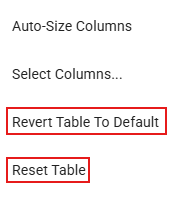
- To clear any changes (such as grouping, searches, or sorting), click the
 three-dot icon in the table's top-right corner and select "Revert Table to Default" or "Reset Table".
You also have the ability to Print, Export, or Email the report by selecting your desired action on the top-right corner of the screen.

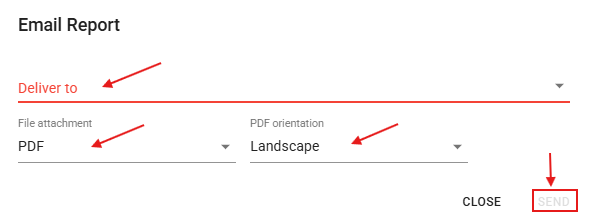
To Email a report you need to click on the REPORT icon, and select “Email Report”. Choose your destination Email, or type one in the box, Choose your report’s Format, and Orientation, and click Send.
If you have any questions or issues regarding the Speed Violation report, please contact Navistream Support.
Navistream Support
1(844)571-8200 EXT 2
navistream@stti.ca