
After a Geozone is created, a User with the Super Administrator, or the Geozone Administrator access can edit the Geozone, and set Speed Limits, and desired active Date, and Time for the Speed Limits.
Note that a Super Admin, or a Geozone admin can also set Speed Limits (with desired active Date, and Time) while creating a Geozone. Please refer to this article to know more about How to Create a Geozone.
To add a Speed Limit and its desired active Date and Time to your Geozone, first locate your desired Geozone from either the “Fleet Tracking” or “Administration” tab:
Fleet Tracking
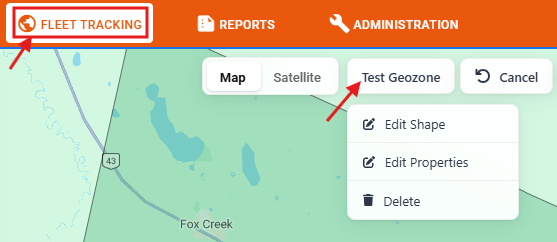
Under Fleet Tracking, Find the Geozone on the map and left click on it.
The name of the Geozone will appear with a map pointer in the top-center of the map area.
Hover your mouse over the name to bring up available options, and select the “Edit Properties” option.
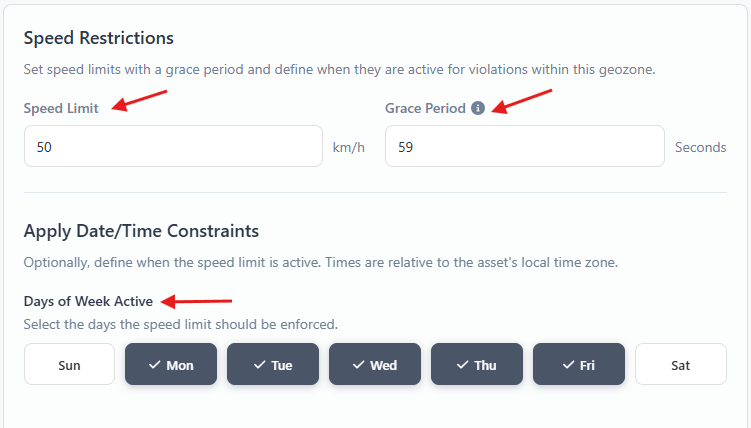
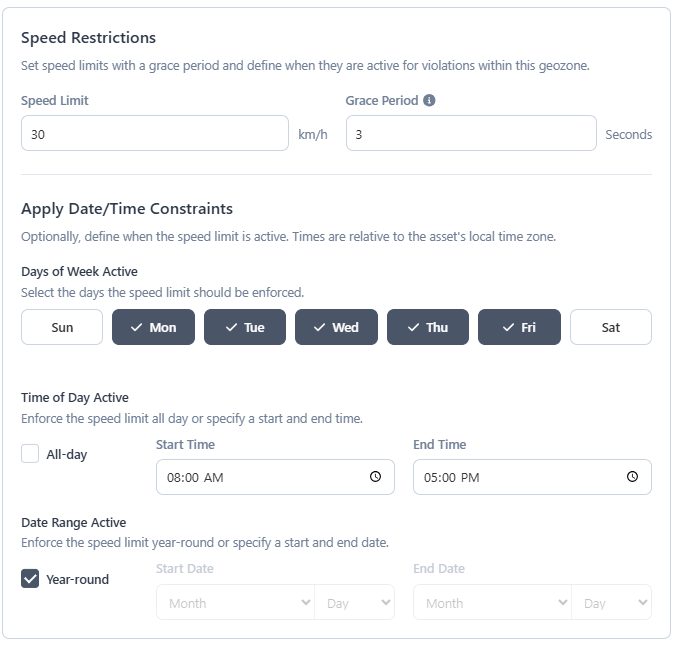
Locate the “Speed Restrictions” section, and designate a max “Speed Limit” for any vehicle in this Geozone.
You can also set a "Grace Period" for your speed limit. A speed violation is recorded only if a vehicle exceeds the speed limit for longer than this duration (in seconds).
You can also schedule speed limits to be active during specific days of the week, times of day, and date ranges.
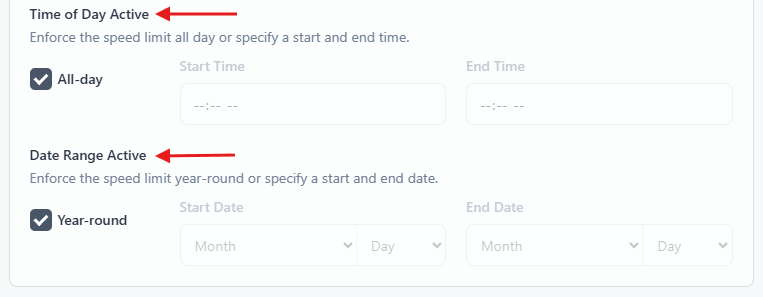
Press the Save button when finished.
The image below displays a Geozone's info summary window with a configured Speed Limit.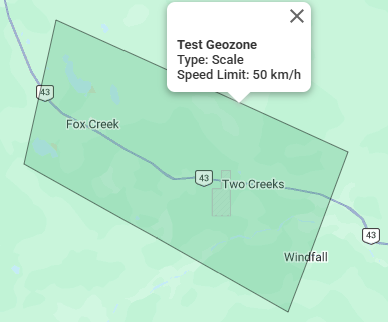
Administration
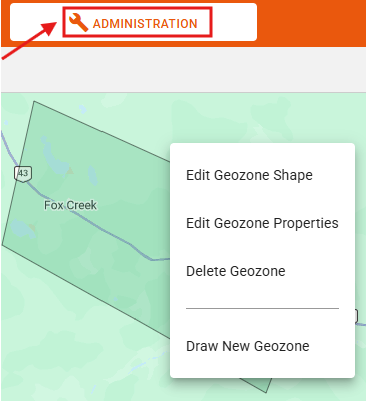
Find your Geozone on the map and right-click on it.
A new window will appear, select “Edit Geozone Properties”.
Follow the steps above to configure the speed limit, as well as your preferred date and time settings.
Press the Save button when finished.
The following example illustrates a configuration for a school zone, where the speed limit is enforced Monday through Friday, from 8:00 AM to 5:00 PM.
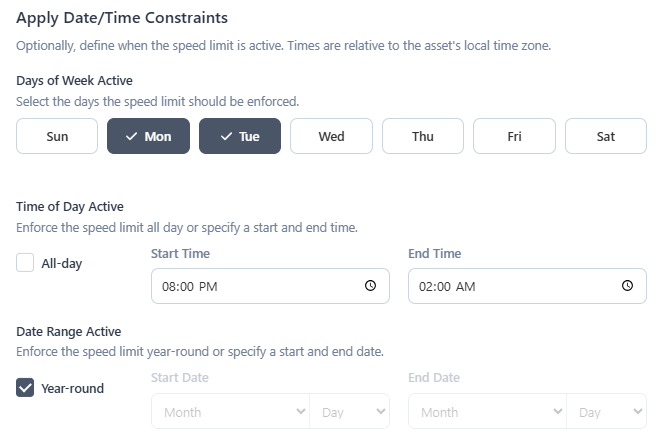
Note that daily schedules reset at midnight. If your speed limit enforcement needs to extend past midnight, you must select two consecutive days. For example, to enforce a speed limit from Monday 8:00 PM to Tuesday 2:00 AM, select both Monday and Tuesday, and set the time range to 8:00 PM to 2:00 AM.
If you have any questions or issues regarding how to add Speed Limits, and their Date, and Time restrictions to a Geozone, please contact Navistream Support.
Navistream Support
1(844)571-8200 EXT 2
navistream@stti.ca