
A Speed Limit is important in order to prevent speed-related crashes, and reduces vehicle emissions. Proper speed control will ultimately lead to improved road safety, better fuel economy, and less air pollution.
A speed limit does not physically limit the speed a driver may operate their vehicle. Instead, this is a tool that you can use to alert the driver when they are going above a certain speed threshold. If enabled on the tablet, audible alerts will play when the driver exceeds the speed limit.
Creating, or editing a speed limit, and its grace period is a function available only to users with Super Administrator role in your organization’s Navistream web client.
Creating a Speed Limit:
Log into the www.mynavistream.com website with a user account that has Super Admin privileges.
Click on Administration at the top of the page.

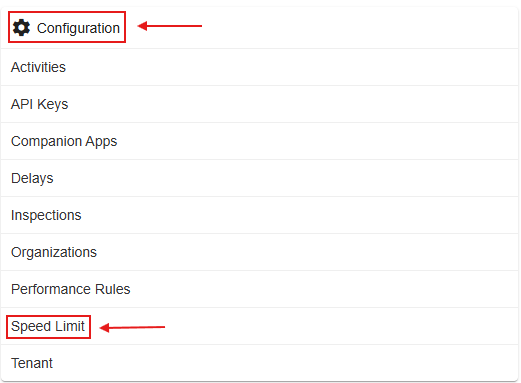
Click on Speed Limit under configuration. Either on the left side panel, or middle of the page.
If you have multiple organizations, you can set the default Speed Limit, and its Grace Period (The number of seconds before the alert is sounded for the Driver after the speed limit is breached) for all your organizations by clicking the “Defaults” button in the top right corner of the screen.

From here you have the option to enter your desired Speed Limit, and its Grace Period, or revert back to the default settings. Click Save when finished.

You also have the ability to set the speed limit for a specific organization by clicking the edit button located on the far right corner of the organization’s row in the table.

Important Notes:
After creating a Speed Limit, and its Grace Period, if you want the tablets to audibly notify the drivers, please make sure that the Tablets are configured to receive Audible Speed Alerts. You can refer to the following article on how to activate this setting.
How to enable Audible Alerts on a TabletYou can also set a Speed Performance Rule for your organization (Performance rules are set for different data parameters that are tested against a driver’s real-time performance) in a defined Points structure. The points will be shown to the Driver on the Dashboard Screen when a performance rule is breached. Please note that the performance rule’s value for speed can be different than the speed limit’s value. You can refer to the following article on how to activate this setting.
Performance Rules Explained
The following image shows the tablet screen when a Speed Limit is breached while a different Speed Limit Performance Rule is active:
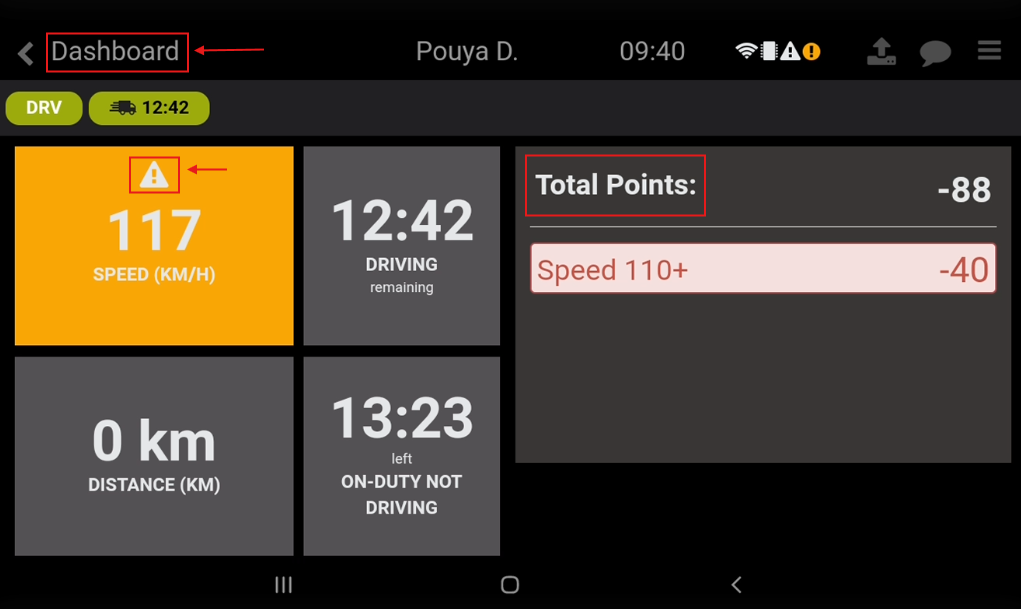
The yellow warning box, and sign indicate a Speed Limit breach (set to 115 km/h). The driver is currently within the "Grace Period"; once this period ends, the box will turn red.
The deducted points indicate a breach of the Speed Performance Rule (set to 110 km/h).
If you have any questions about how to set Speed Limits, please contact Navistream Support.
Navistream Support
1(844)571-8200 Ext 2