
"Unidentified Driving" time is a special type of duty status entry. These statuses are occurred, and held in the tablet’s memory when a vehicle with an active ECM connection is in motion, without a user being logged in as the vehicle's driver.
Please note that claiming duty statuses that aren't your own may result in log entries that impact your hours of service and may render you without hours to drive.
The Unidentified Driving Summary Report is a tool that helps the users with Super Administrator, Manager, and Dispatch access to identify, and address Unidentified Driving instances for specific vehicles. This is important to find trends, as well as capture, and correct driver logs that may potentially lead to violations.
To access this feature, go to mynavistream.com, navigate to the Reports Tab, then look under the “Driver Logs” option to locate the “Unidentified Driving Summary” report. This report is also accessible on the left-hand menu under “Driver Logs”.
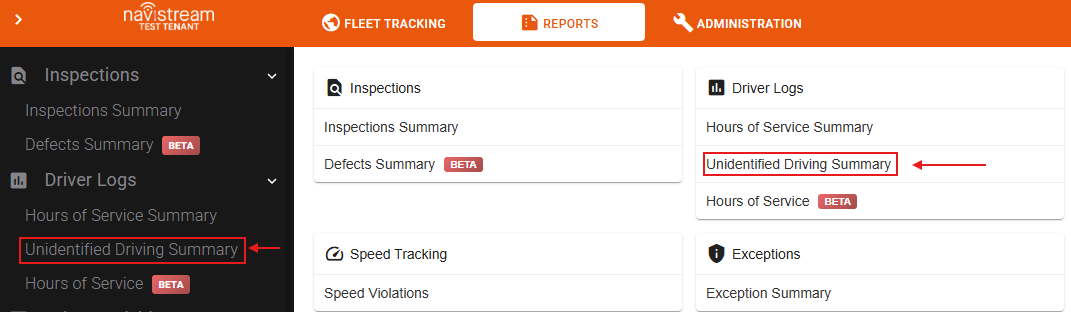
The report is composed of 4 sections:
Query
Quick Filters
Aggregates
Data Table
1. Query
In this section you can select your desired “Organization”, “Date Range”, or “Start/ End Dates”. (Please note that selecting more than 14 days with “Inactive”, or “blank” activity statuses may result in a very large amount of data being returned at once, which could cause your browser to potentially crash.)

2. Log Filters
In this section you can Choose your desired Vehicle(s), Select the Activity Status of the vehicles (Note that if you remove this filter, you will see all unidentified driver logbooks, which is one for each vehicle in your selection per day), and select the Availability of the Duty Status for the vehicles.

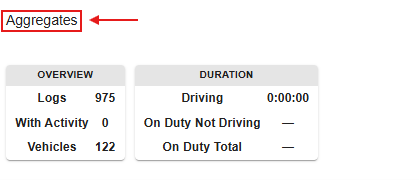
3. Aggregates
Shows a summary of data for your selected Query, and Filters.
4. Data Table
Each row represents an Unidentified Driving instance for a specific Vehicle at a given timestamp. Note that you have the ability to sort the table by clicking on your desired resources’ column header (Date, Vehicle, Organization, etc.). You also have the ability to search any resources by typing your desired data in the search box on the top-left side of the table.
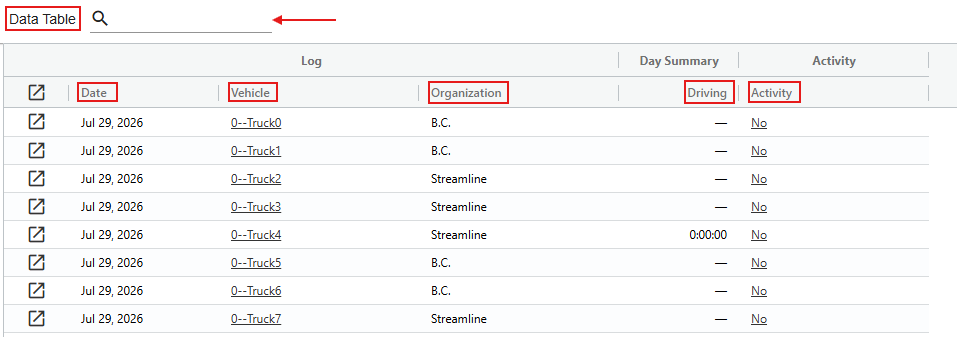
By clicking on the Log Details icon  for any desired instance of Unidentified Driving, you will be directed to the details page of your selected instance.
The Log Details timeline is a split screen that has a breadcrumb map on the right side of the screen and a detailed chart that represents the duty status changes assigned to the unidentified driver on the left side of the screen.
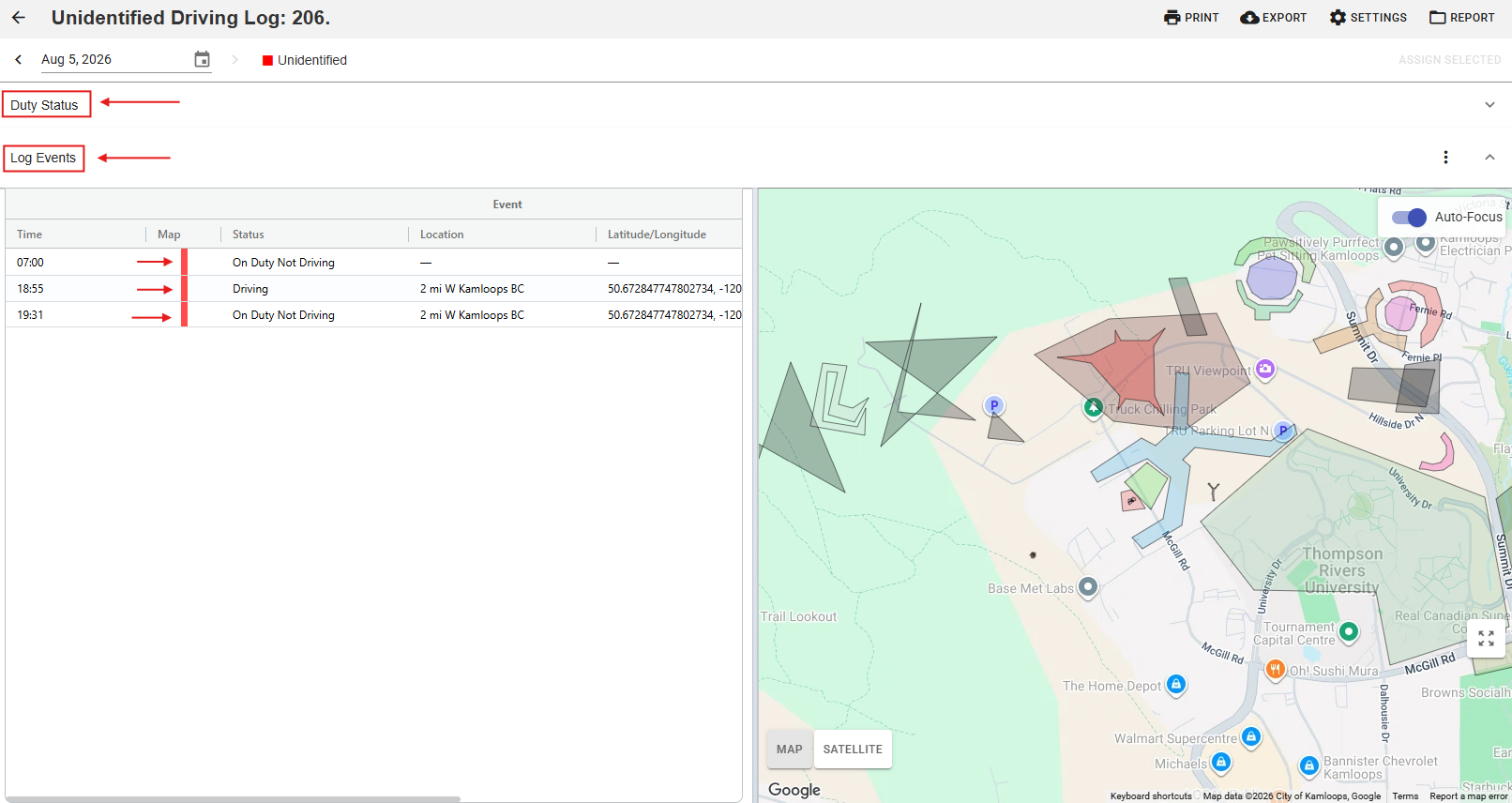
Clicking on the “Duty Status” button underneath the Date will display the Duty Status Graph, and the respected Unidentified Driving instances in red.

Please note that you have the ability to assign the Unidentified Driving instances to a driver. To do so using the Unidentified Driving Summary report, please refer to this article.
Please note that the Driver also has the ability to claim the Unidentified Driving instances. Please refer to this article on how to claim an unidentified driving instance on the tablet.
You also have the ability to Print, Export, or Email the summary by selecting your desired action on the top-right corner of the screen.

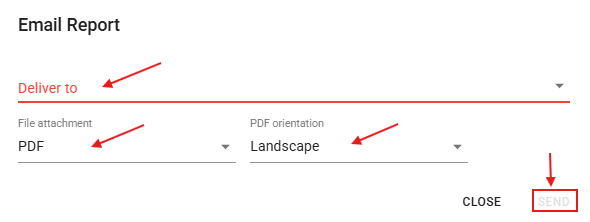
To Email a summary, you need to click on the REPORT icon, and select “Email Report”. Choose your destination Email, or type one in the box, Choose your report’s Format, and Orientation, and click Send.
If you have any questions or issues regarding the Unidentified Driving Summary report, please contact Navistream Support.
Navistream Support
1(844)571-8200 EXT 2
navistream@stti.ca