
You can access a vehicle's Inspection Detail Report directly from the Fleet Tracking Panel.
To do so, log in to the Mynavistream.com web portal and navigate to the Fleet Tracking Panel.
From here, select the desired vehicle under the Drivers tab, or switch to the Vehicles tab in the top navigation bar to select it. Once Selected, you can see a high level Vehicle Defect Summary.
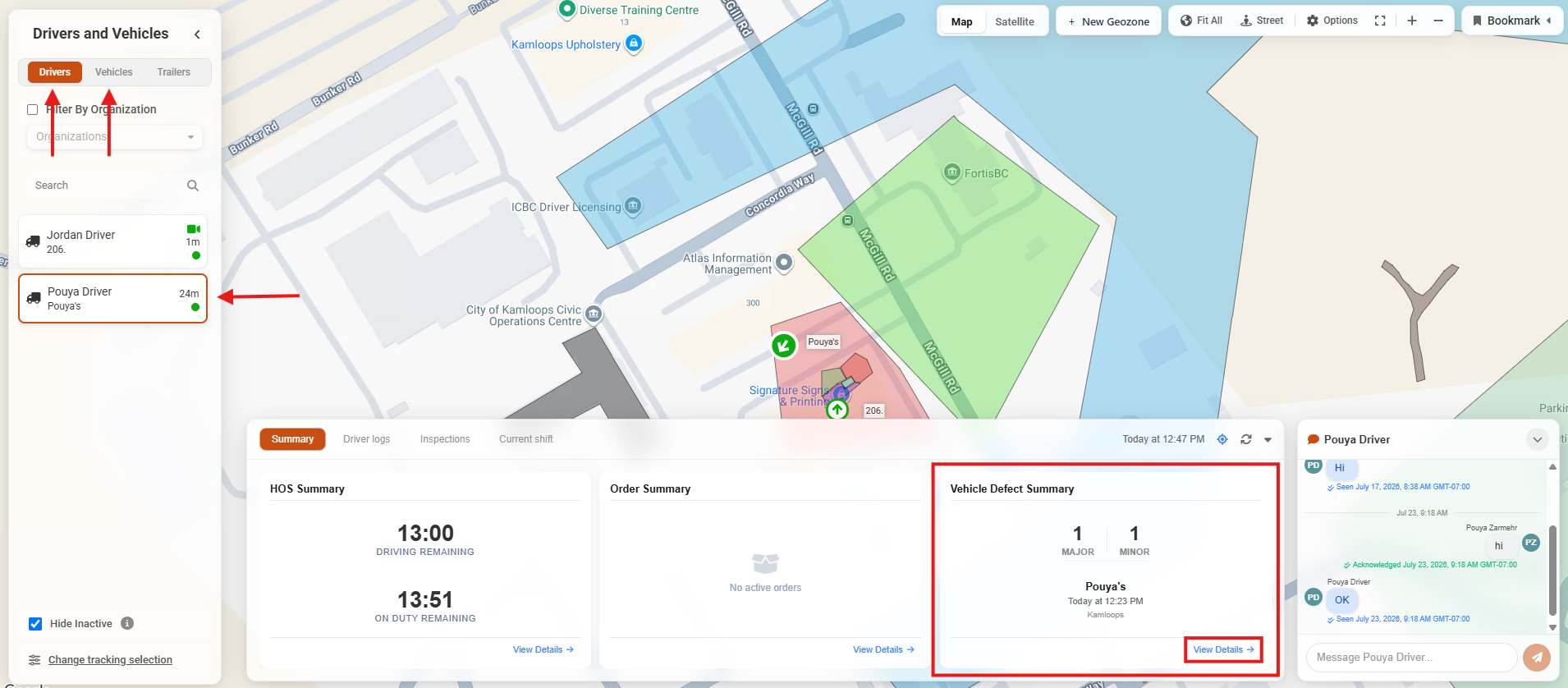
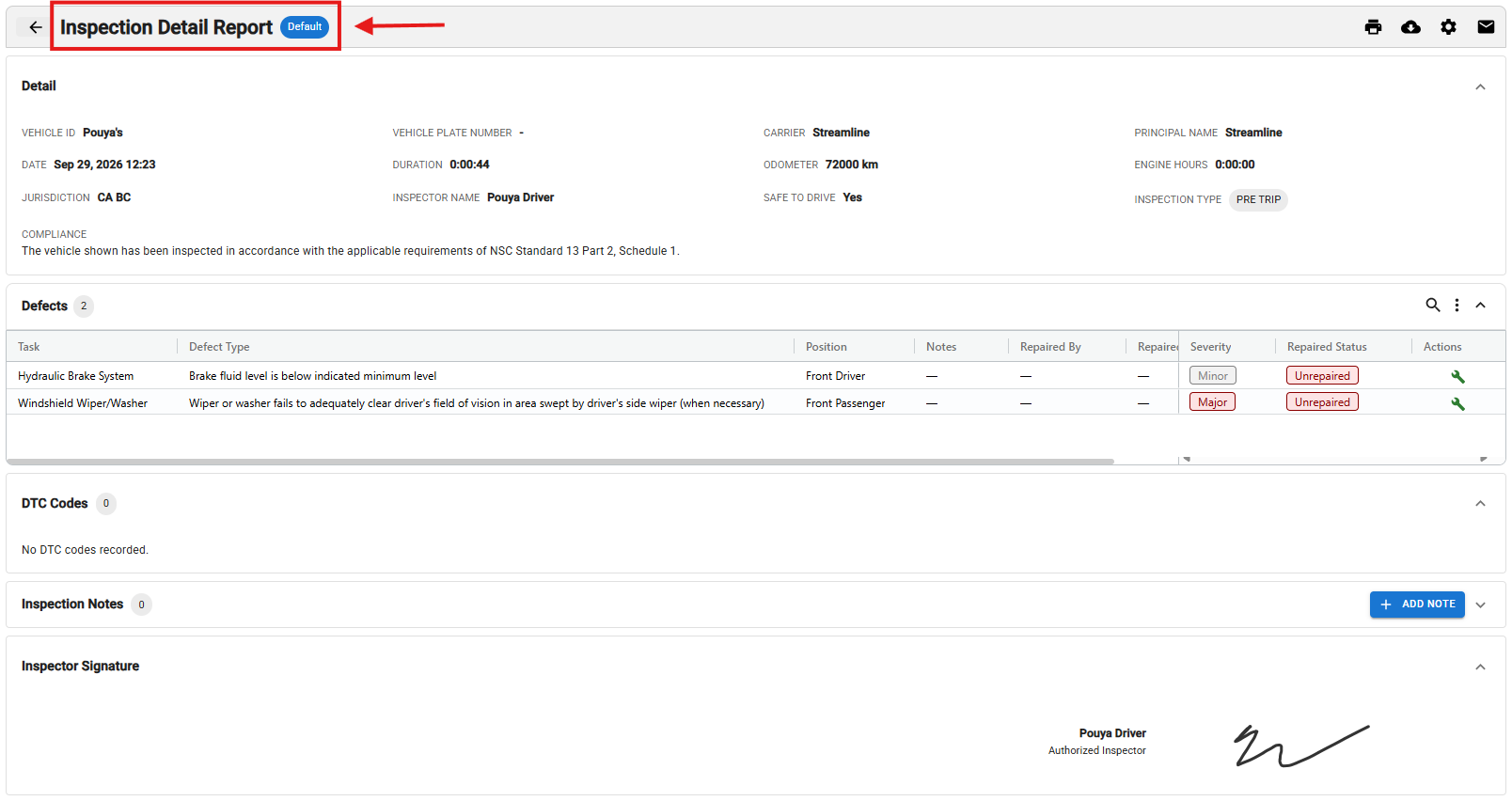
Clicking on View Details will navigate you to the vehicle's Inspection Detail Report. From this page, you can review defects, take action, or add inspection notes. (For more details on the report, refer to this article).
You can also access the report by going to the Inspections tab in the bottom panel. Here, you can review the latest Vehicle Defect Summary. (For more details on the summary, refer to this article)
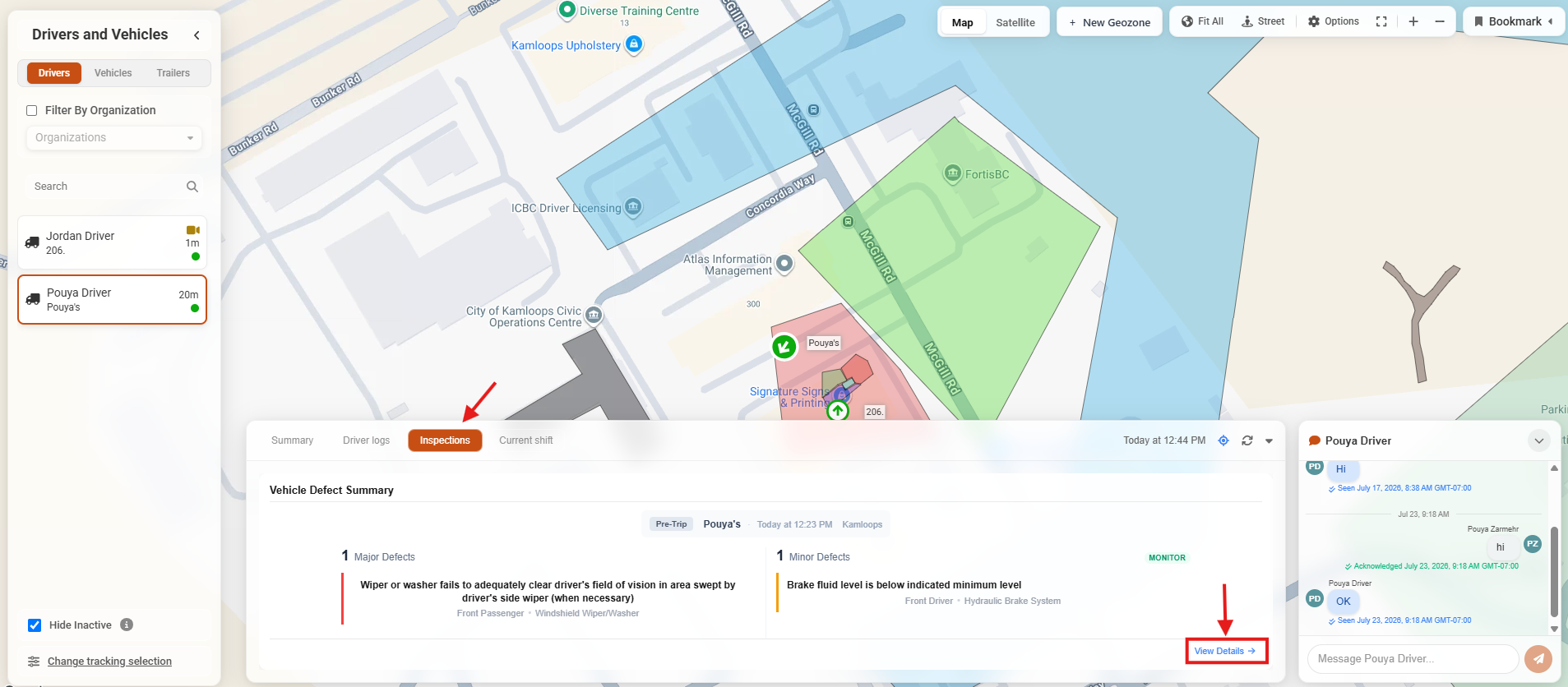
Clicking on the View details in the bottom-right corner will open the vehicle's full Inspection Detail Report.
For more information on the Inspection Report or Defects please view the following Support Articles:
If you have any issues accessing the Inspection Report or if you have any questions, please contact Navistream Support.
Navistream Support
1(844)571-8200 Ext 2
navistream@stti.ca