
This guide provides step-by-step instructions for identifying and resolving Electronic Logging Device (ELD) connection issues with your vehicle's Engine Control Module (ECM) using the Navistream Driver App.
The collection of Engine Control Module (ECM) data is a critical and legally mandated component of certified Electronic Logging Device (ELD) compliance under Transport Canada, CVSE, and FMCSA regulations. By interfacing directly with the vehicle's engine diagnostics port, the ELD continuously syncs real-time telemetry, including engine power status, vehicle motion, speed, total distance traveled, and engine operational hours.
Maintaining a seamless ECM connection ensures accurate, tamper-proof driver log reporting, prevents compliance violations during roadside inspections, and avoids automatic duty status miscalculations.
There are a few ways to determine a lack of ECM connection on the Navistream Driver App:
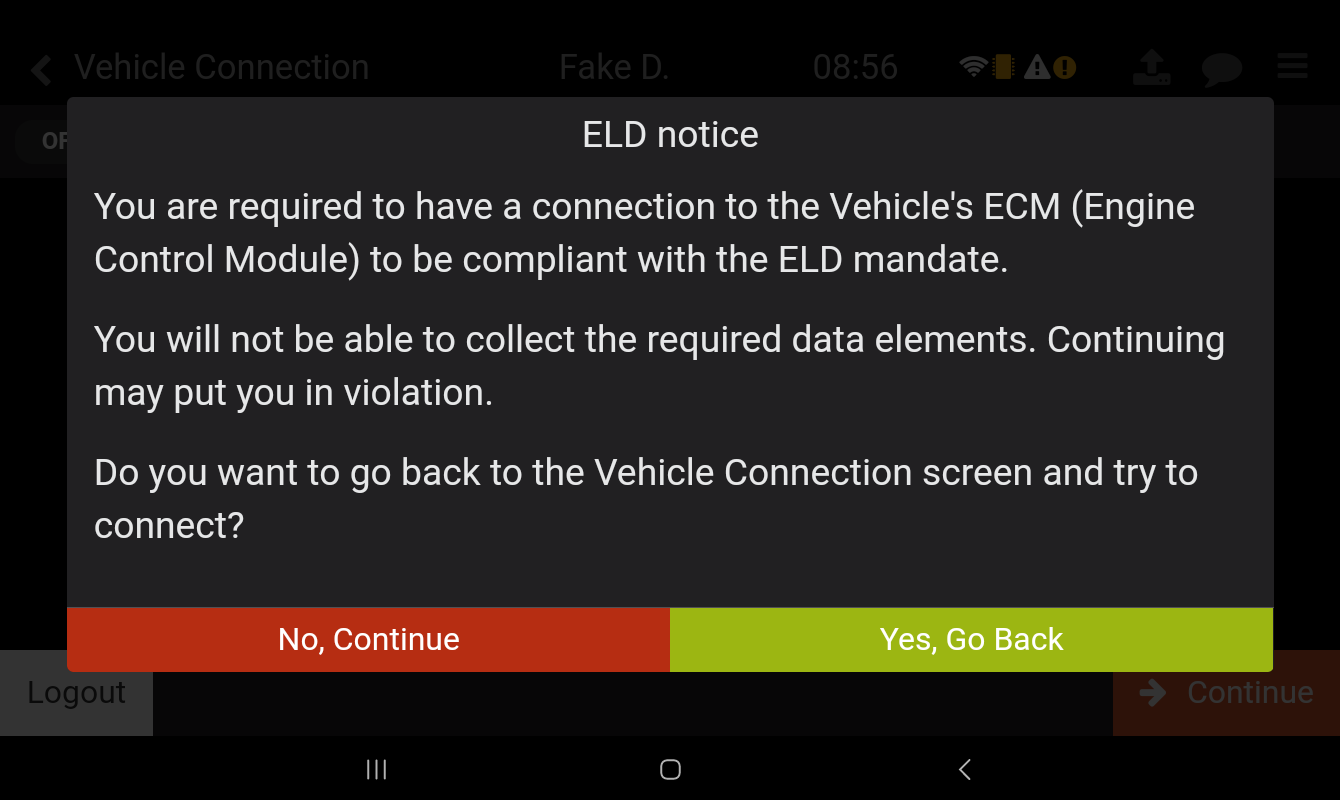
The ELD Notice warning message:
Appears during the login flow when attempting to connect to a vehicle with no ECM connection. This message will prompt and persist. Should you select ‘No, Continue’, no ECM data will be collected.
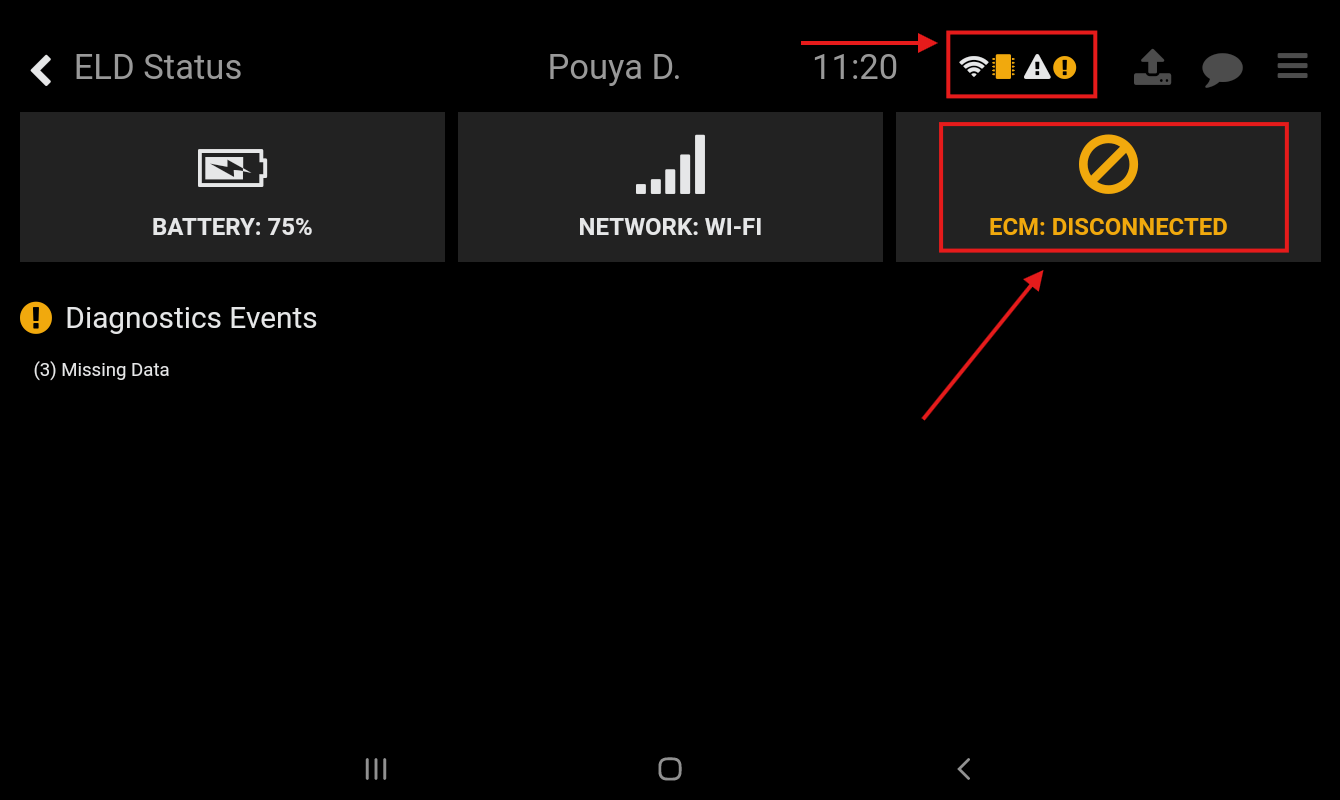
Connectivity Status Screen and Icon:
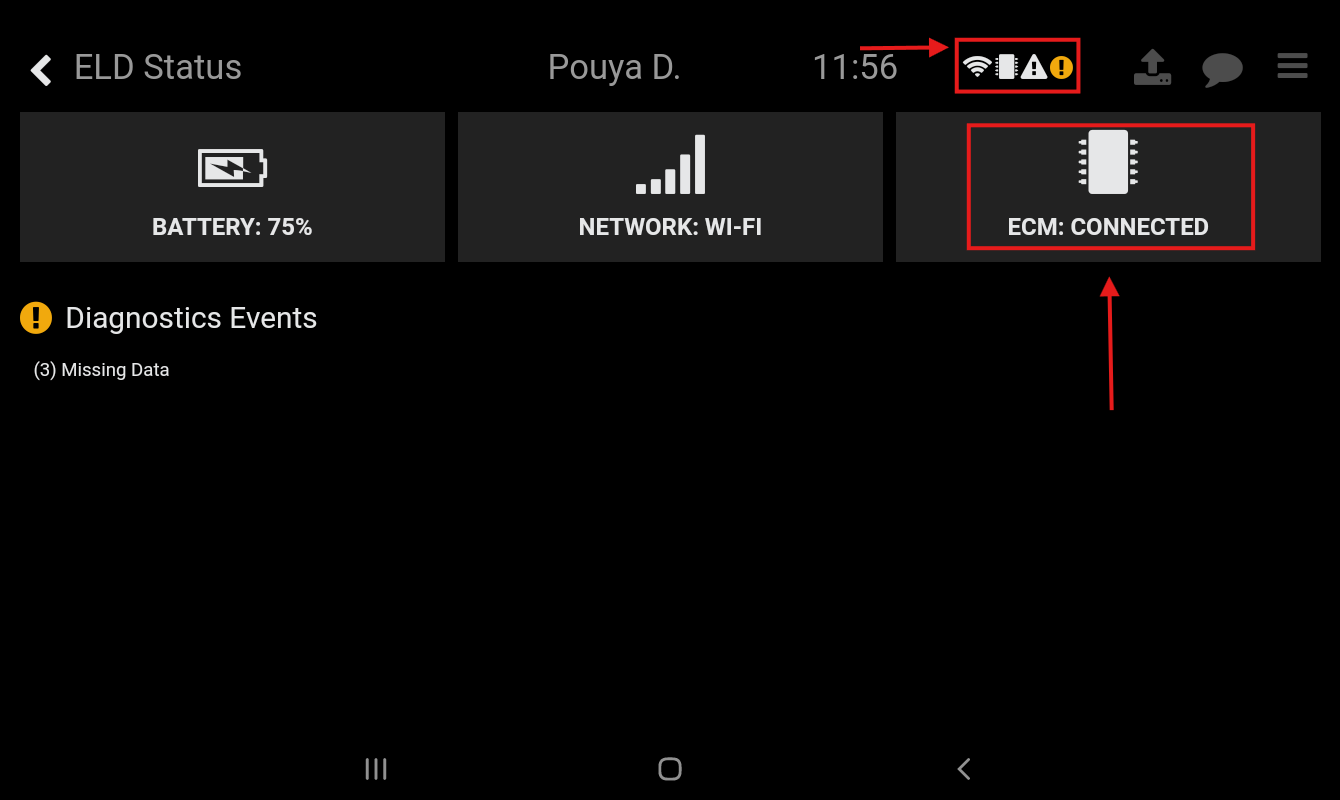
Tapping on the connectivity icon on the top bar of the tablet will direct you to the Connectivity Status screen. If you see a yellow ECM icon on the top bar of your tablet, or if the ECM status in the Connectivity Screen displays ‘ECM: DISCONNECTED’, no ECM data is being collected.
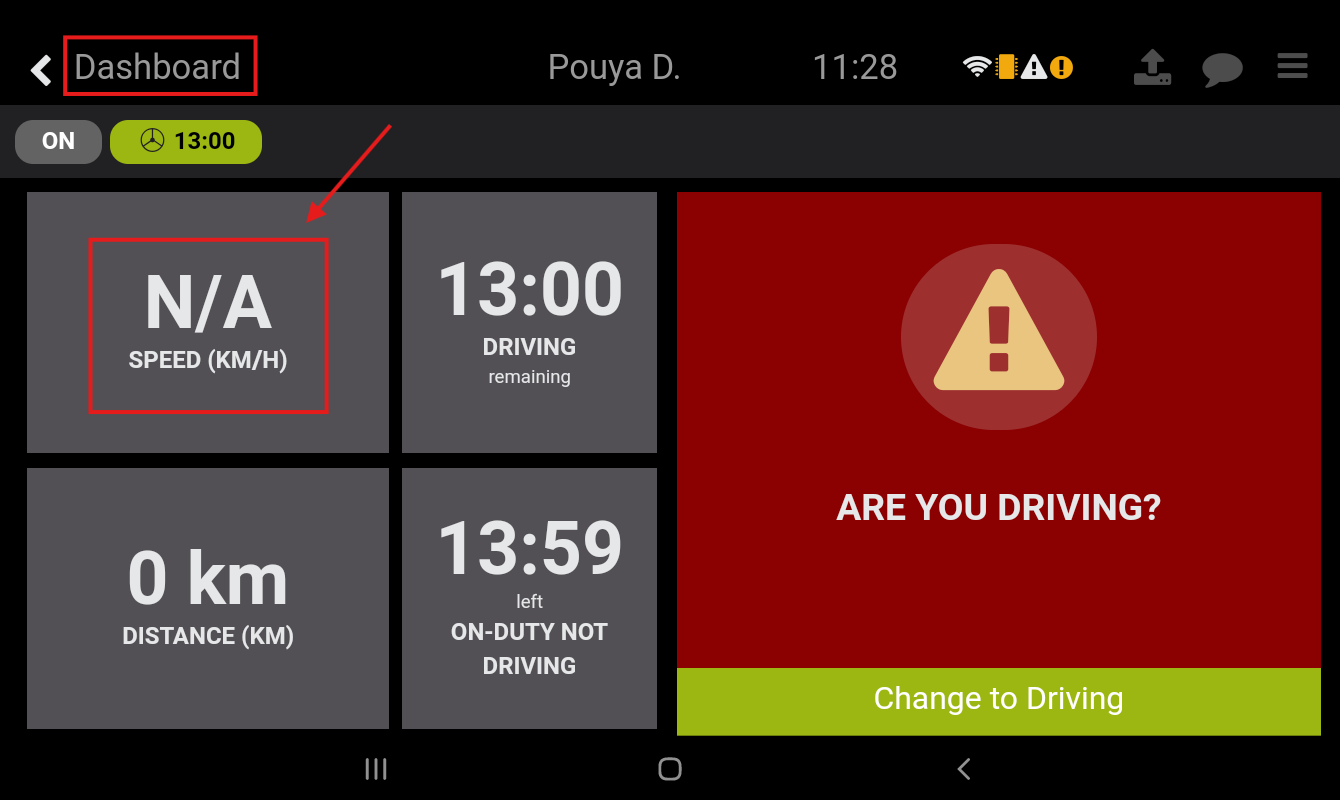
Speed indicator in Dashboard:
When there is no ECM connection, the speed indicator in your dashboard may display N/A for the speed at all times or intermittently. This also means that the tablet is not automatically detecting whether you’re driving or stationary, and will therefore not automatically switch your Duty Status to Driving. This will greatly affect your Hours of Service and Driver Logs.
If you suspect a lack of ECM connection, and are not able to log in to your Navistream driver app to check the above indicators, you can check your ECM connection by tapping the Hamburger menu button ( ), Selecting Support Menu, and then Selecting INFO. There, you can check your ECM connection under ECM.
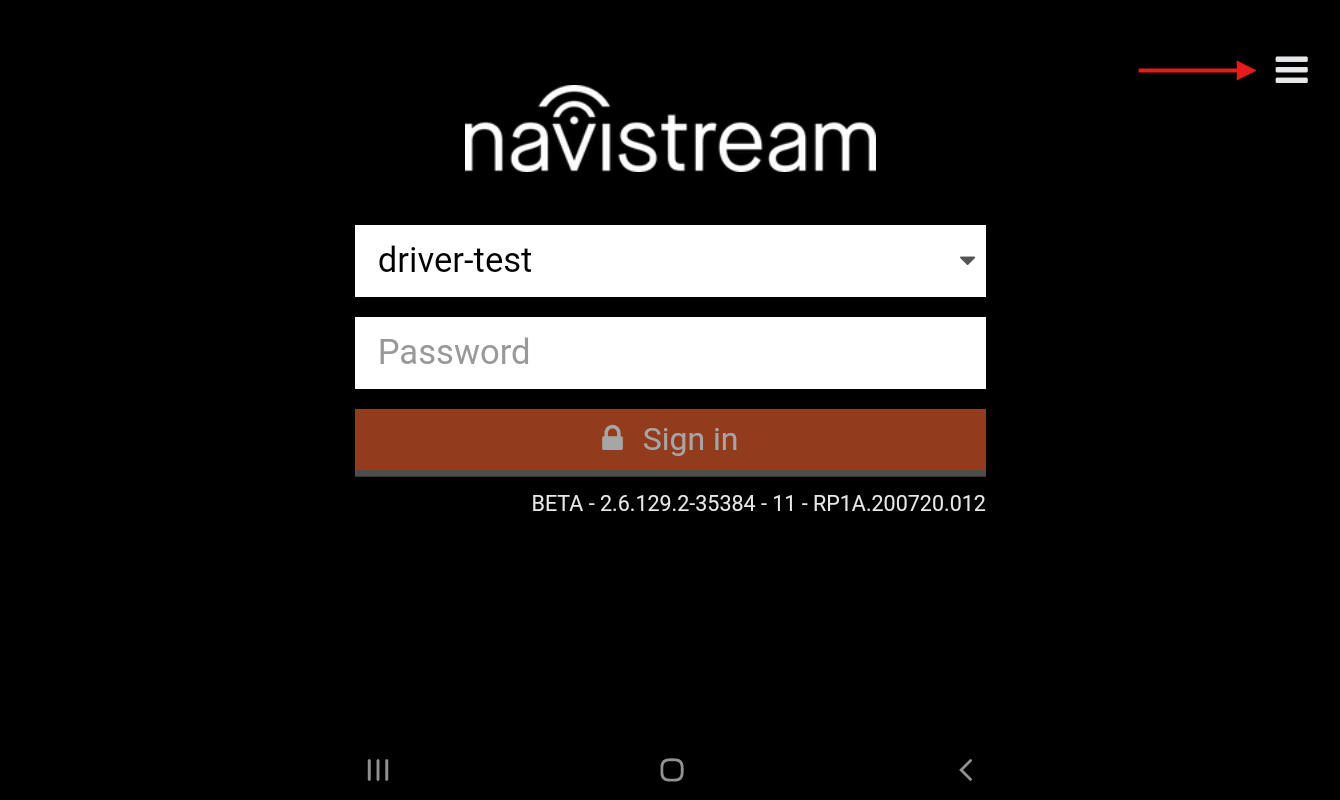
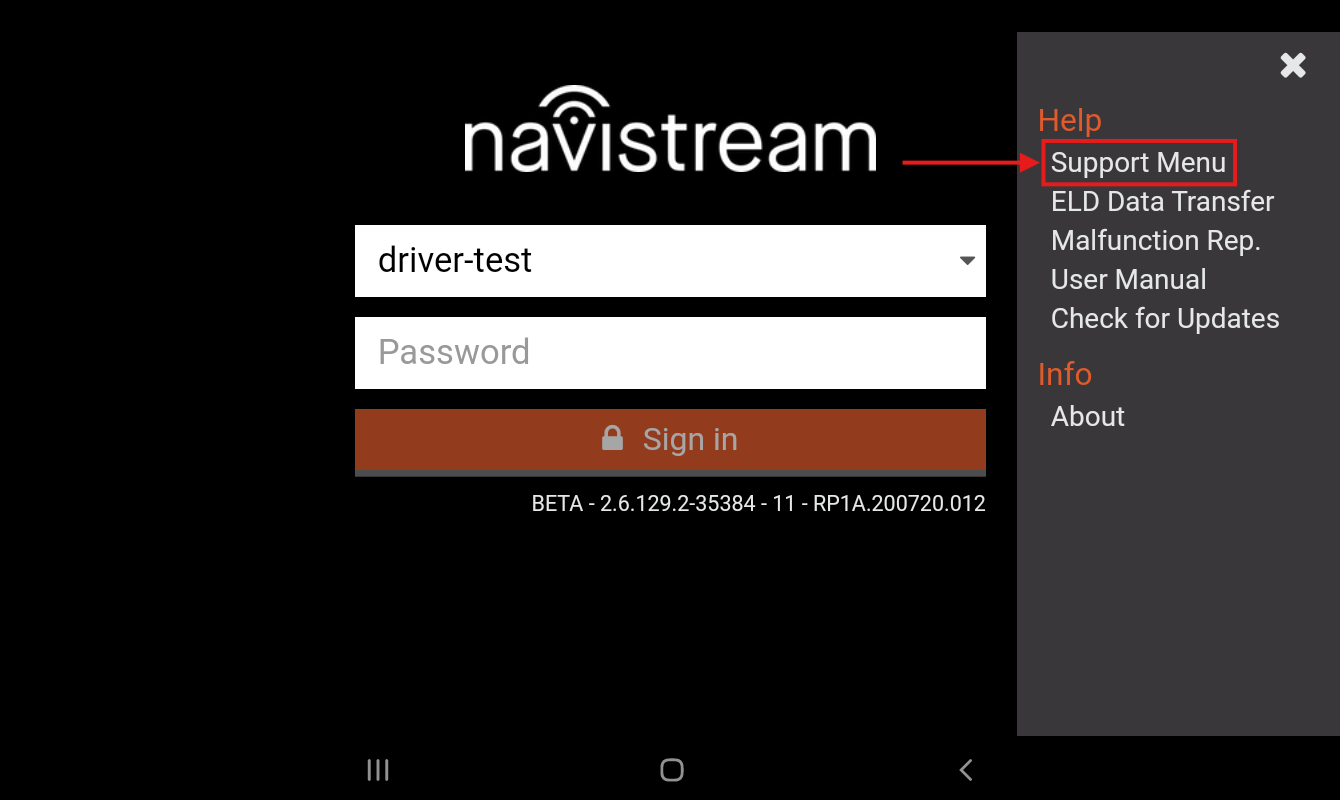
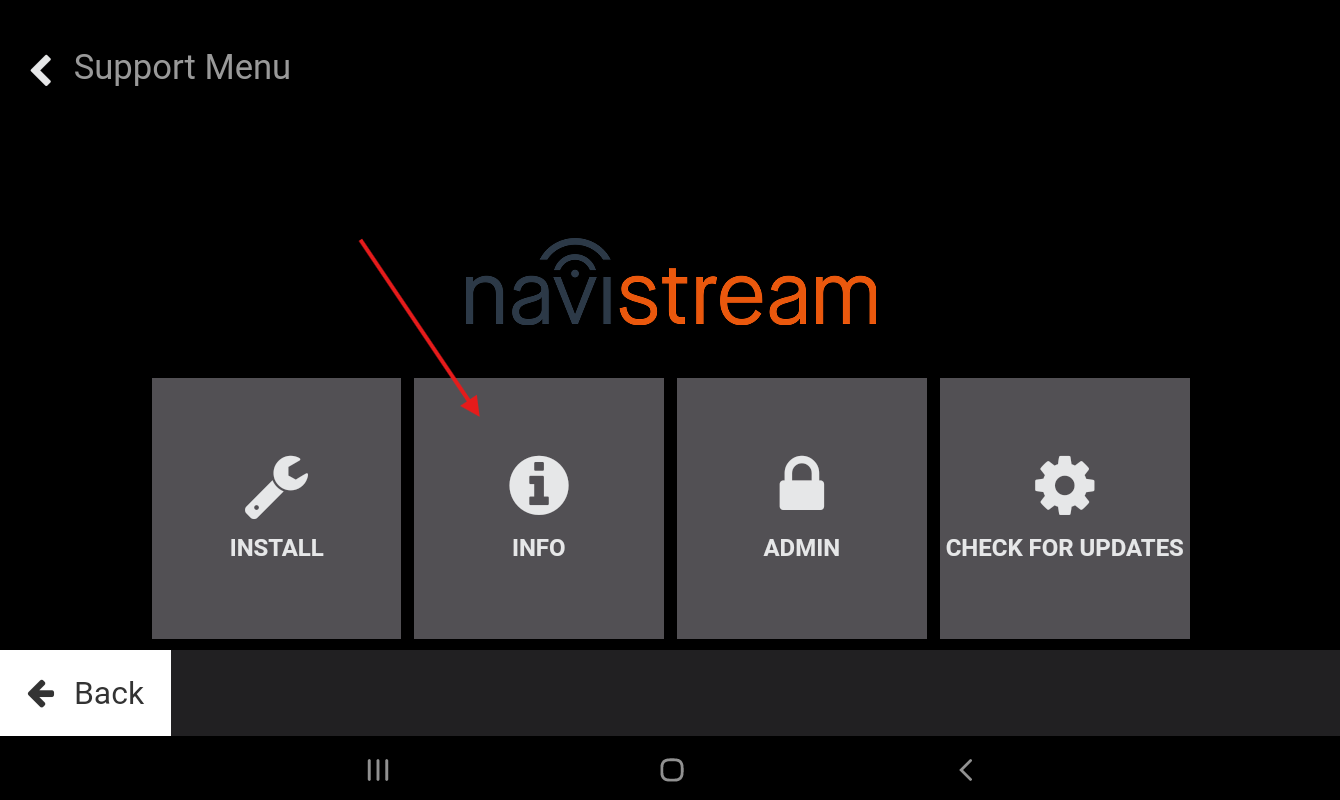
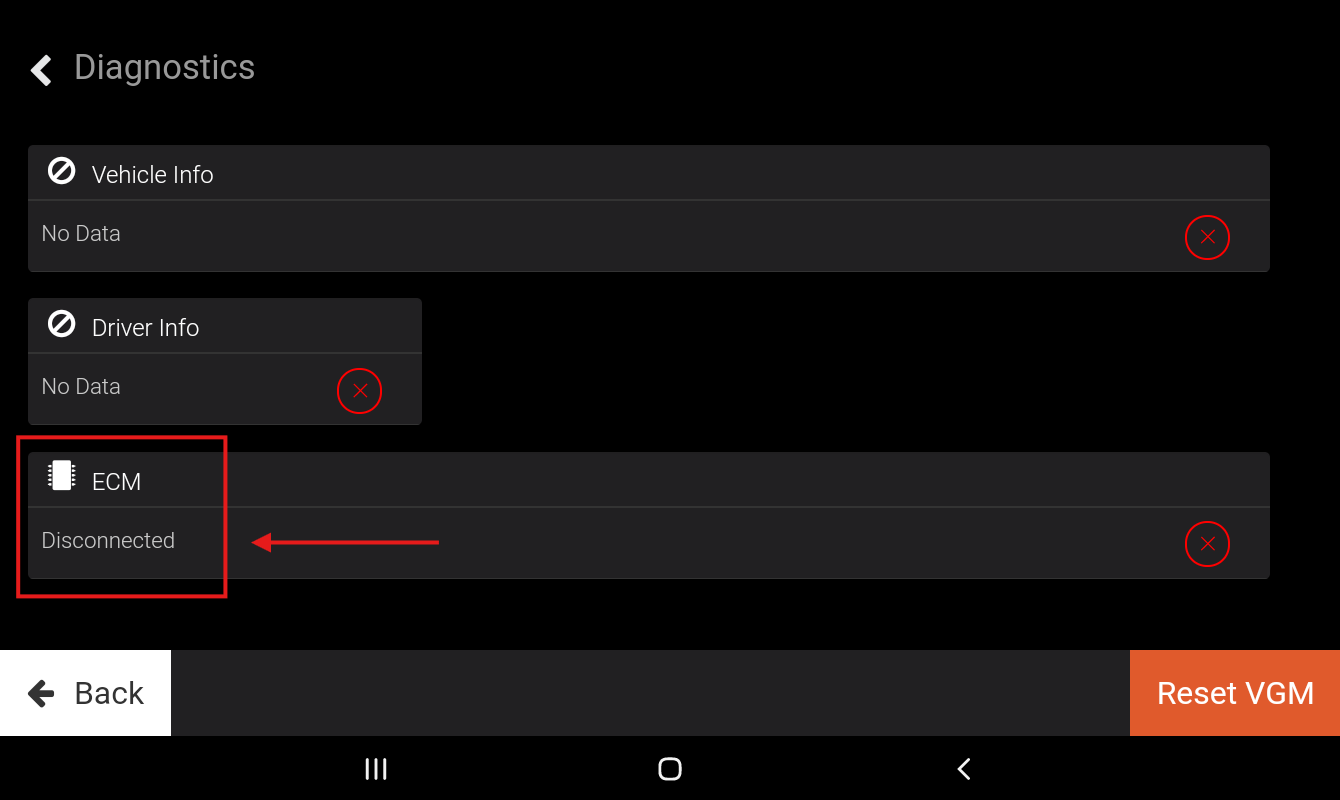
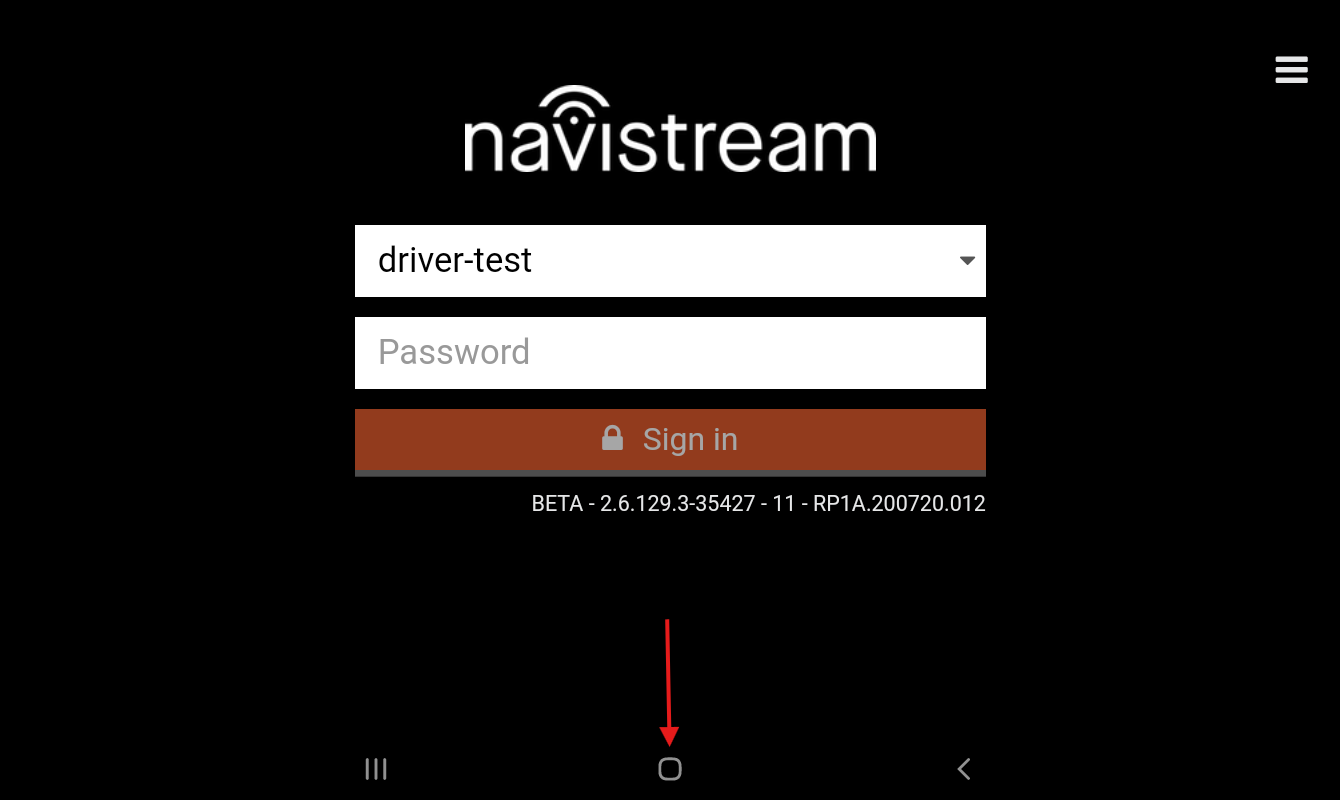
Please note that if the Hamburger Menu button is not visible on your Navistream Driver App, you can access the Support Menu by rapidly tapping the square shaped Home Button of the Android’s Navigation bar Seven (7) times.
If you encounter any of these issues, or suspect a faulty ECM connection, please follow the steps below to troubleshoot:
Power Cycling the ECM Connection
Turn off vehicle engine: Start with your vehicle engine turned completely off.
Locate ports & cables: Locate your vehicle’s diagnostics or telematics port. Confirm one end of the ECM cable (Refer to attached pictures for ECM cables) is attached to the port and the other end is connected to your NaviLink3 gateway device.
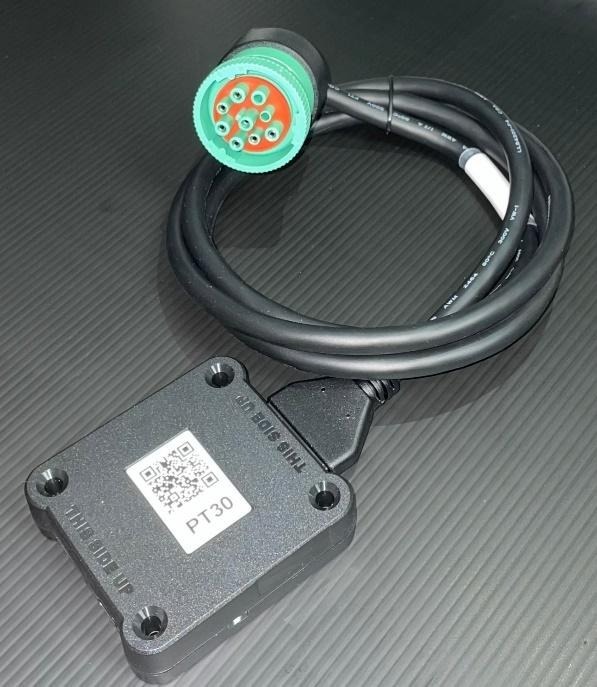
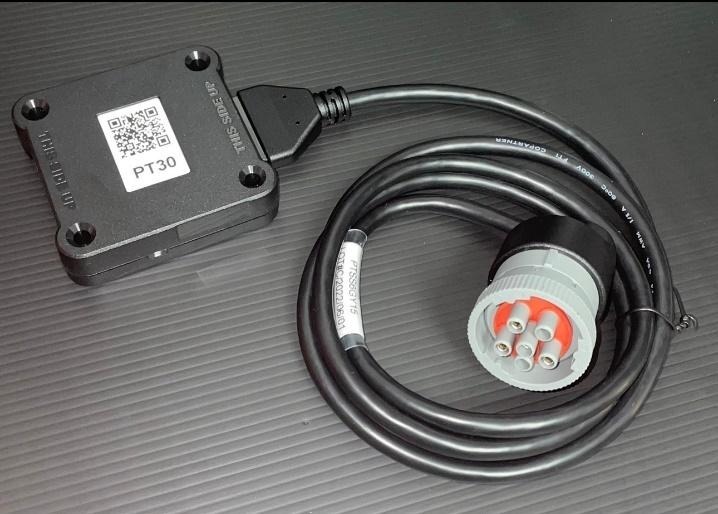
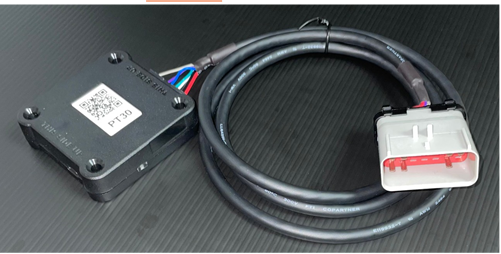
Disconnect hardware: Unplug the NaviLink3 gateway device from the ECM cable, then unplug the ECM cable from the diagnostics (or telematics) port.
Wait: Wait at least 3 to 5 minutes to allow the connection to fully reset.
Reconnect Hardware: Plug the ECM cable back into your diagnostics (or telematics) port, and gently insert the ECM cable connector into the NaviLink device with the pins aligned straight. The latch will lock when the cable is fully inserted.
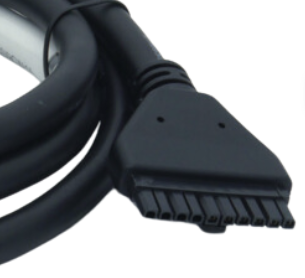
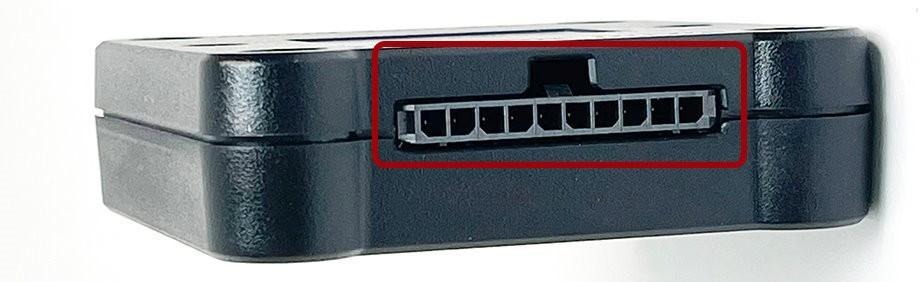
Check LED status: Turn on the engine and check the green and orange LED lights on the NaviLink3 device. For a detailed breakdown of light patterns, see this article.
Complete power cycle: Once the green LED indicator turns solid, turn off the vehicle engine.
Secure the NaviLink device: Fasten the NaviLink device safely away from the driver's area so it cannot shift or interfere with pedals, steering, or other vehicle controls.
Navistream Tablet Pairing Process
Turn on the Navistream tablet and allow Navistream to load. Please ensure that the tablet is at the login screen.
Tap the Hamburger Menu (
 ) located at the top right-hand corner of the screen.
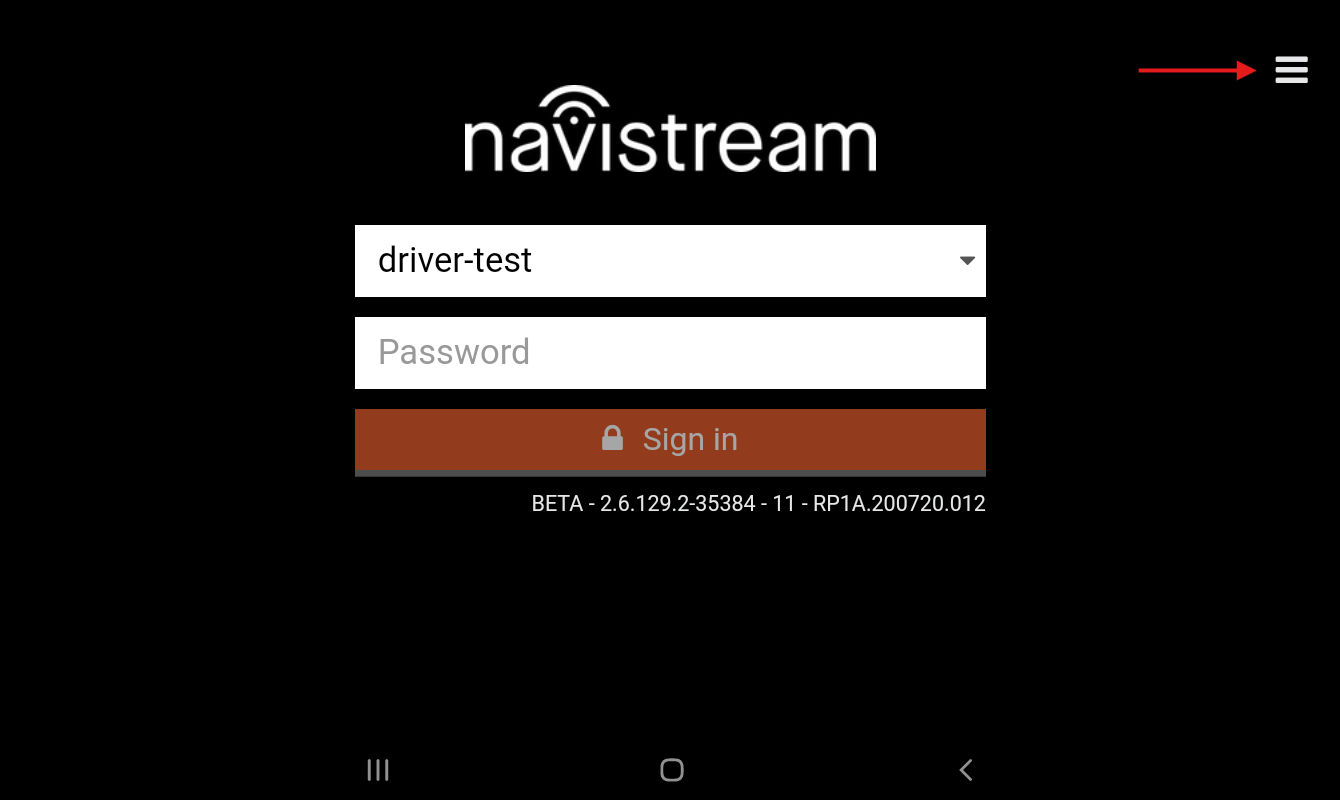
Tap “Support Menu”.
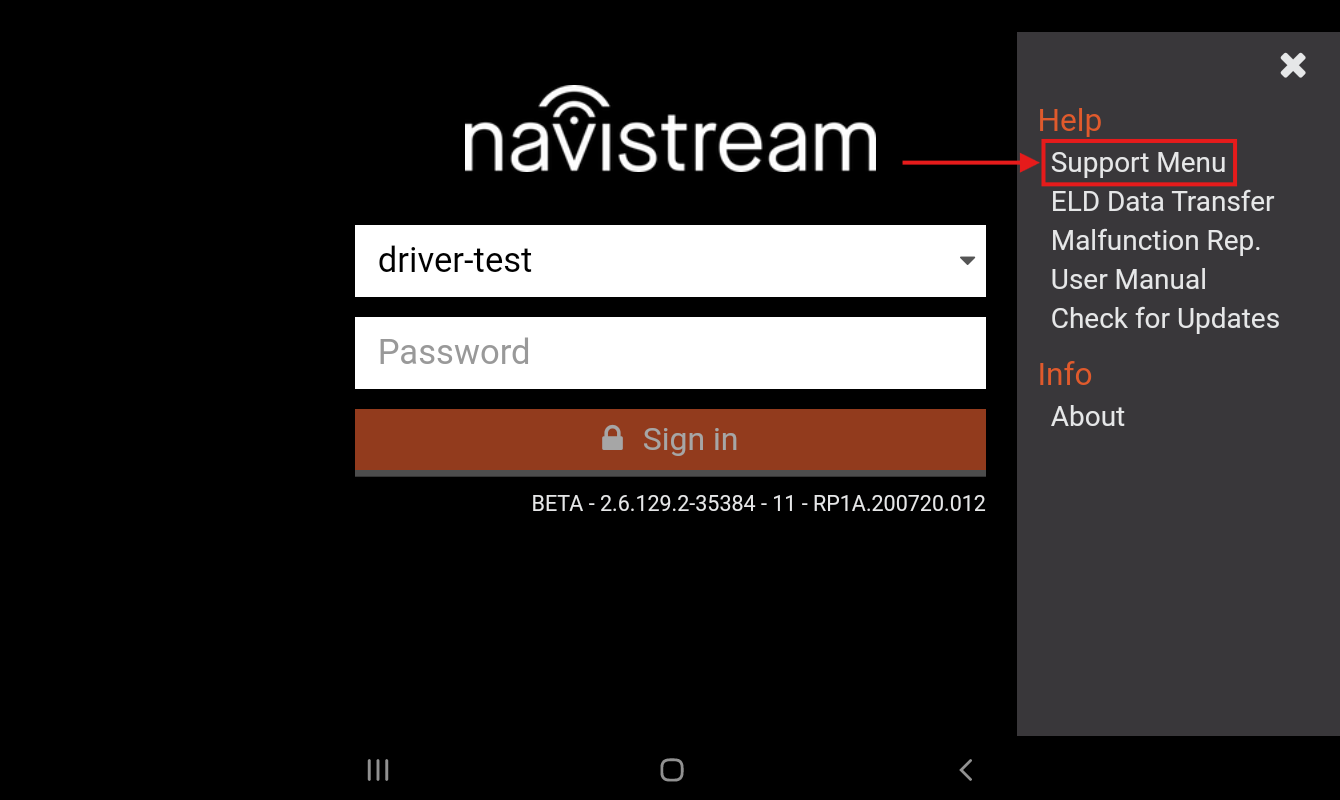
Tap ‘INSTALL’.
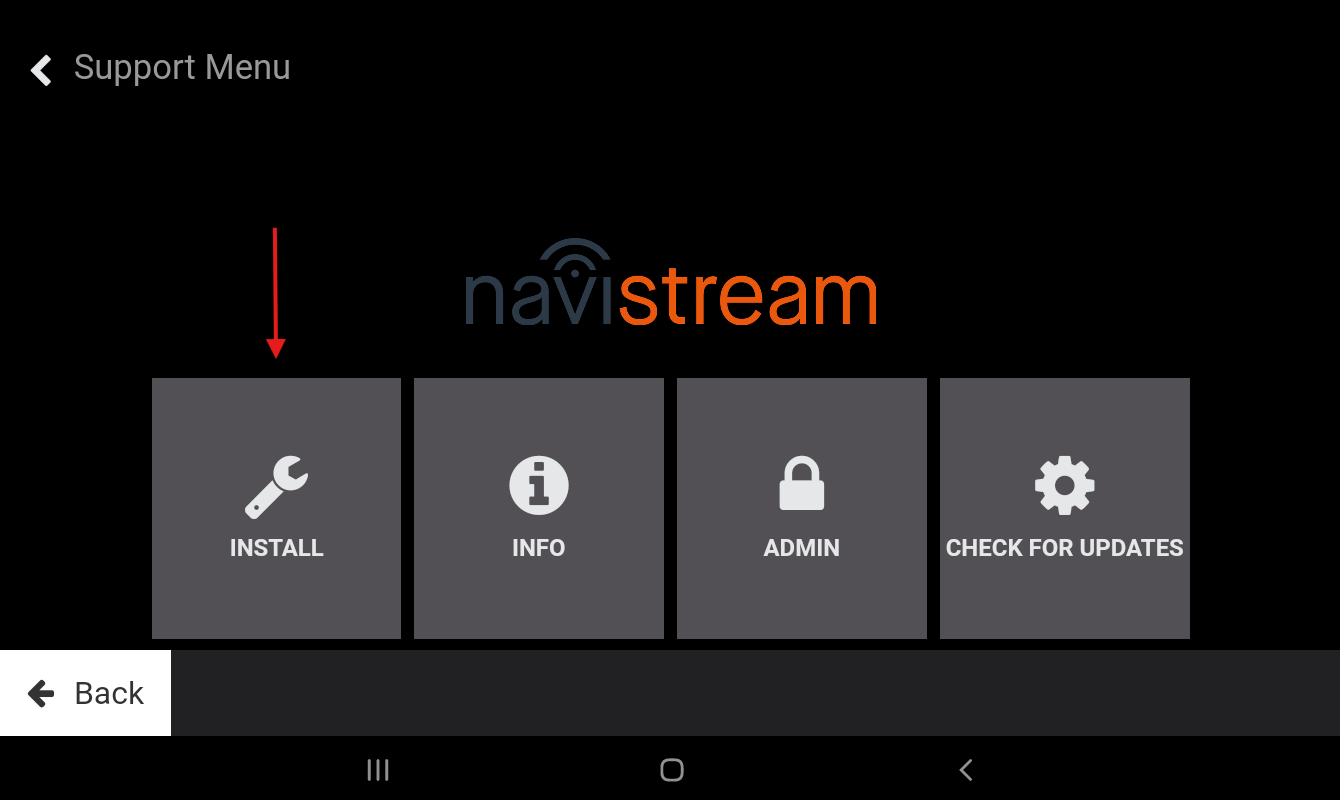
Tap ‘NEW INSTALL’.
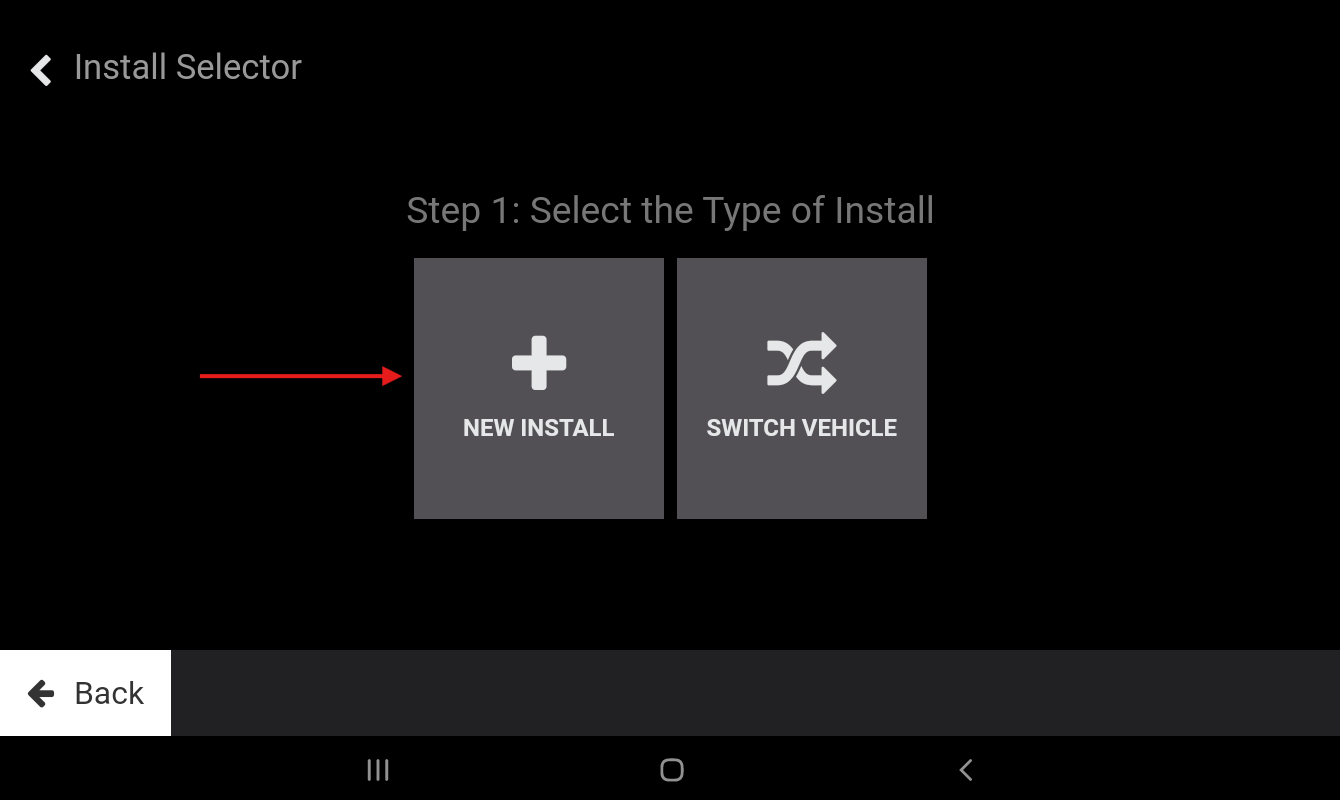
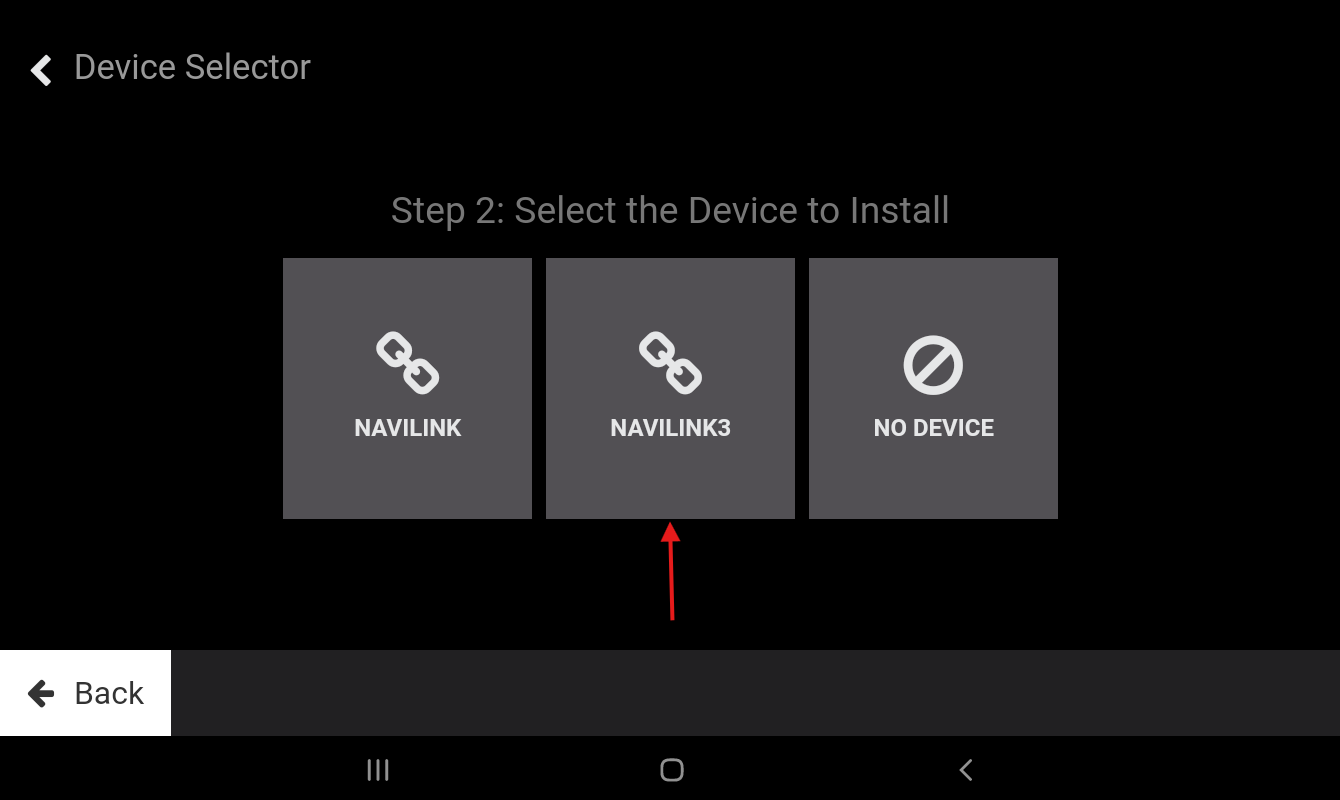
Tap ‘NAVILINK3’.
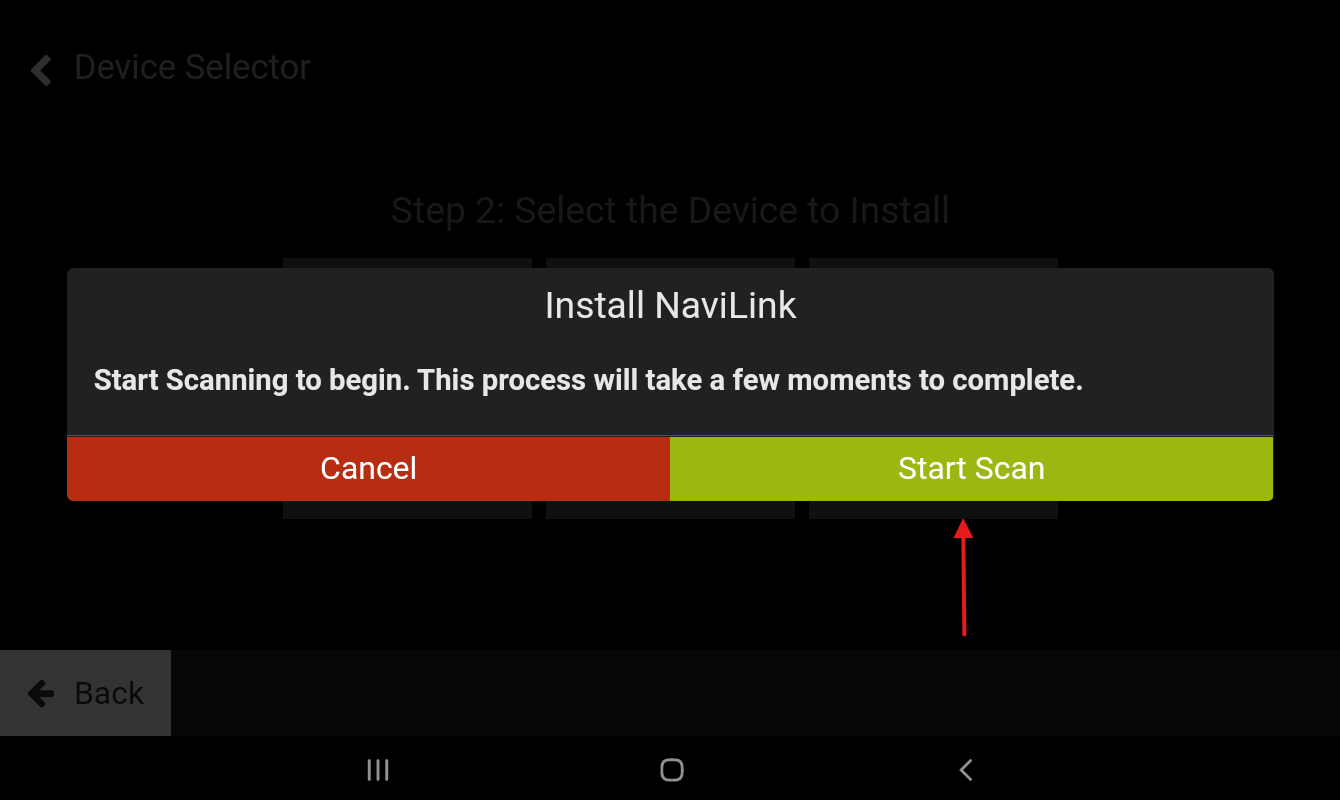
Select ‘Start Scan’.
Note: In the event that there is no power being supplied to the NaviLink, the following banner will be displayed:

Please ensure the NaviLink is getting power, as indicated by the lights on the NaviLink device (refer to this article to learn more about the lights on the NaviLink device), and continue from Step 5.
Wait about one minute for all available devices to show up, then select the entry that matches the VIN number of the vehicle you’re in, and select ‘Confirm’.
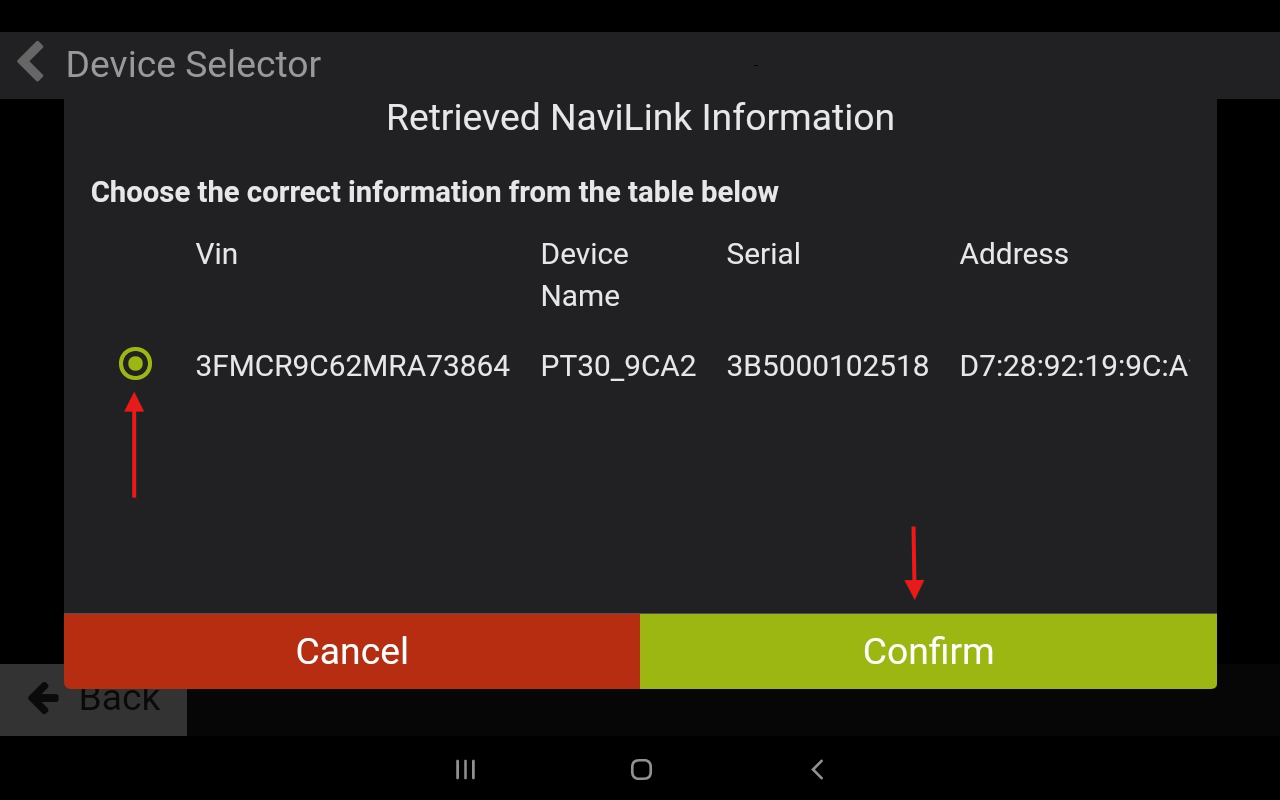
Select your vehicle from the list provided, and press ‘Confirm’ when finished.
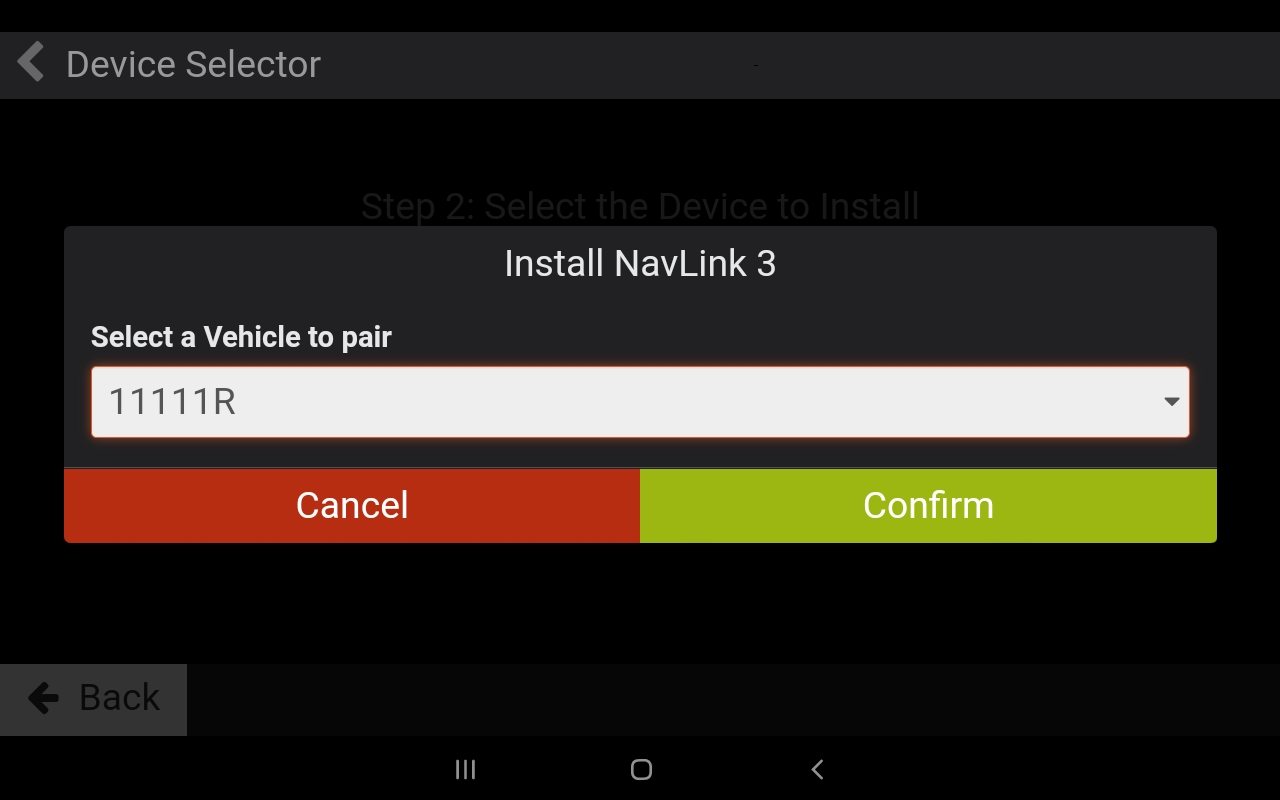
Hit the Back button until you’re back at the Login Screen.
You have now established an ECM connection, and can log in to your account and select your vehicle to pair with. Ensure to double-check your ECM connection using the connectivity icon on the top bar of your tablet before starting your shift.
If you have any questions or issues with troubleshooting your ECM connection, please contact Navistream Support.
Navistream Support
Phone: 1(844)571-8200 EXT 2
Email: navistream@stti.ca