
If you see the Connectivity Warning on your screen, it means your Navistream Driver App has not detected a network connection for over 8 hours. Staying connected to the network ensures your logs, dispatch information, and app updates sync properly with the rest of the Navistream system.
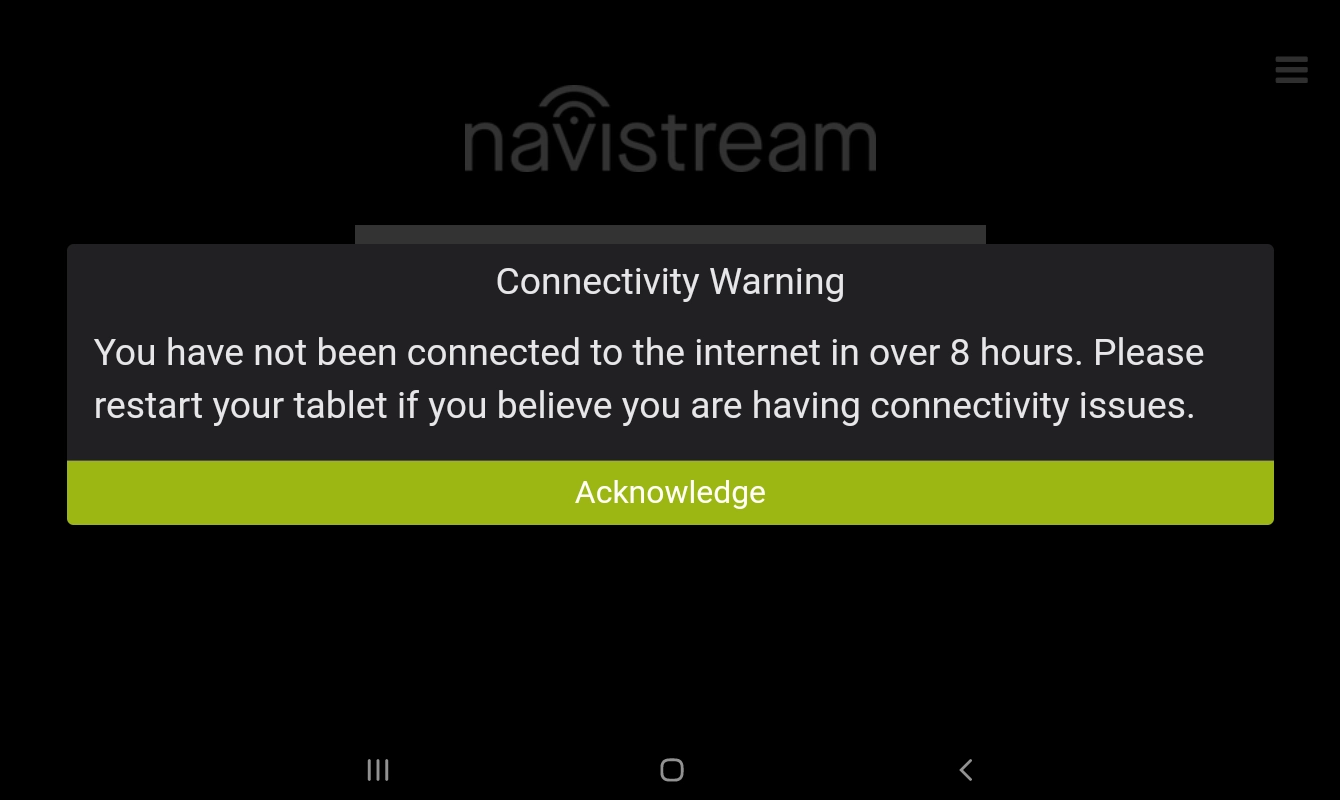
Here is what you should do when this alert appears:
Acknowledge the Warning
Tap the green Acknowledge button at the bottom of the prompt to clear the message and return to the sign-in screen.
Assess Your Current Network Status
Once you are back at the sign-in screen, check whether you are still offline by looking for the ‘Offline’ indicator at the bottom left of the Sign-in section.
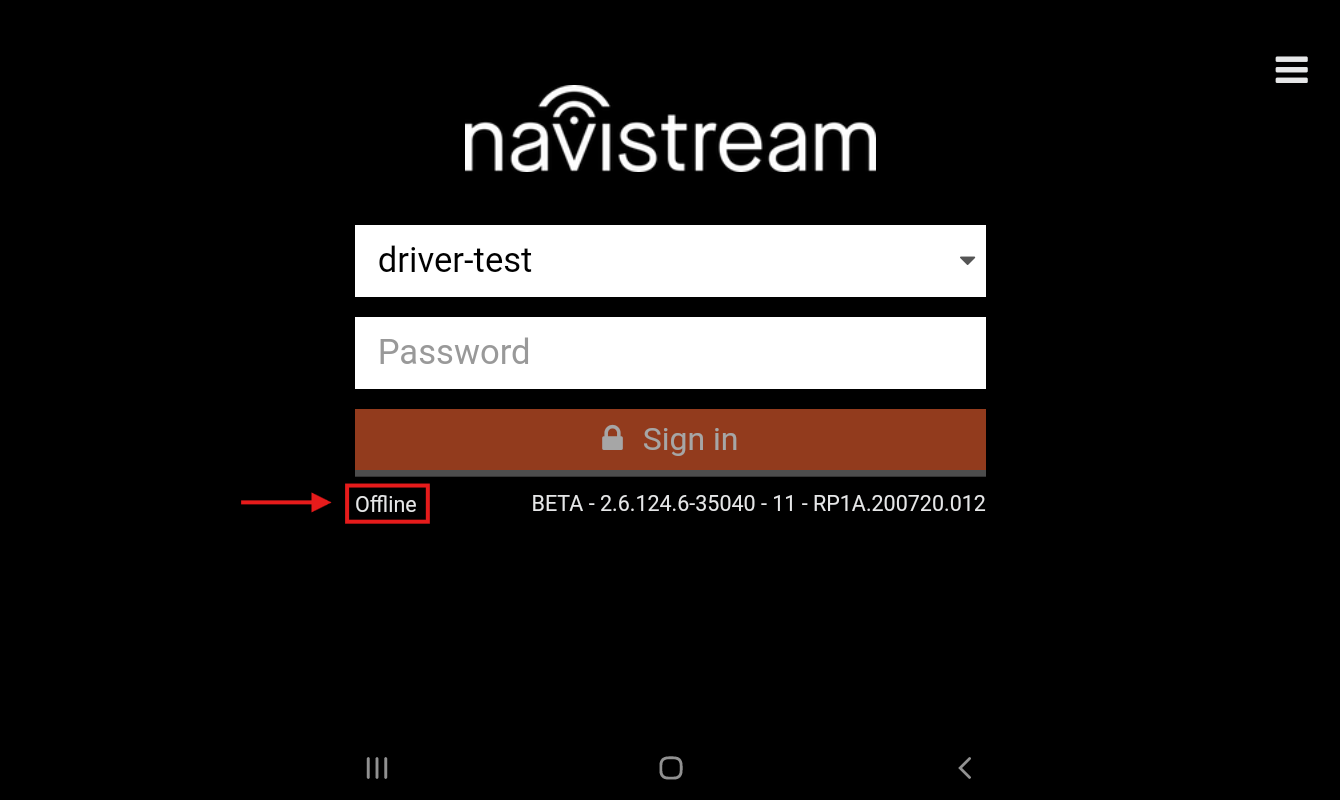
If the status shows offline, log in to your driver account and tap the ‘Connectivity’ icon on the top bar next to the clock.
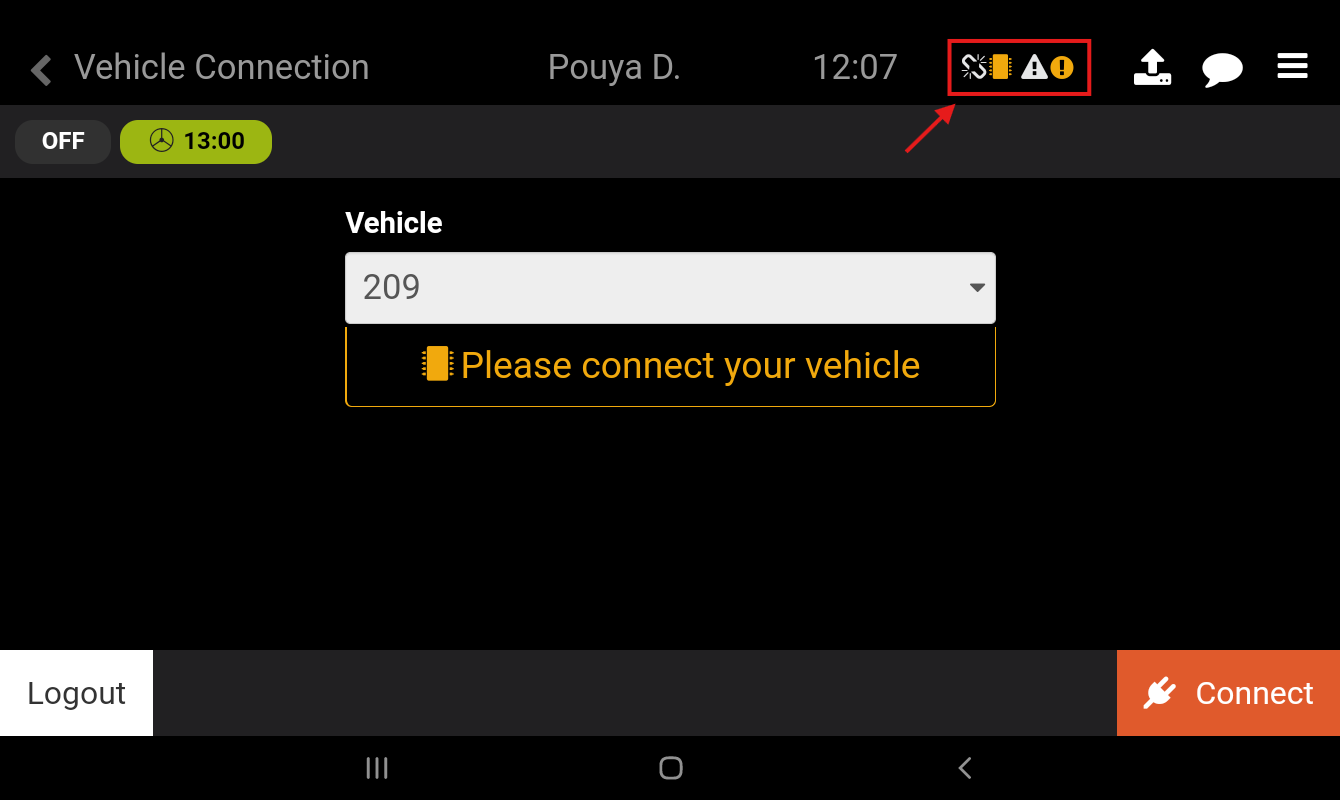
Confirm the network status under Network (e.g., Offline or Airplane Mode). Refer to this article for detailed information on checking your tablet's network connection.
Restart Your Tablet
Press and hold the tablet's power button, then select Restart.
Contact Support
If you have restarted your tablet in a good network-coverage area but the tablet remains Offline or on Airplane Mode, reach out to our support team to troubleshoot the issue.
If you have any questions or issues with the Connectivity Warning, please contact Navistream Support.
Navistream Support
1(844)571-8200 EXT 2