
Data Transfers, apart from being a useful way of sending driver log information to specific individuals, are often required for both Canadian and US Audits.
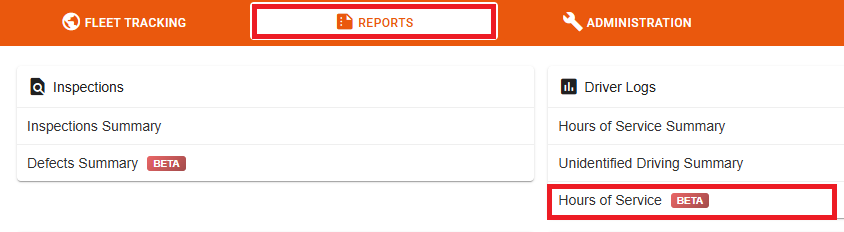
In order to do this through the Navistream web portal, please log in, navigate to the REPORTS tab, and select Hours of Service.
This will bring you to the Driver Log Summary Report. Here, you will set the applicable fields:
Selected Organizations
Selected Drivers
Date Range
Once this is complete, click on GET LOGS.

The Data Table will populate according to these criteria. If you wish to further refine your search, you can use the Quick Filters to do so. The available filters here are:
Vehicles
Log Activity
Driver Enabled
Violations
ELD Error Codes
Completeness
Log Certification

The results will be displayed in the Data Table.
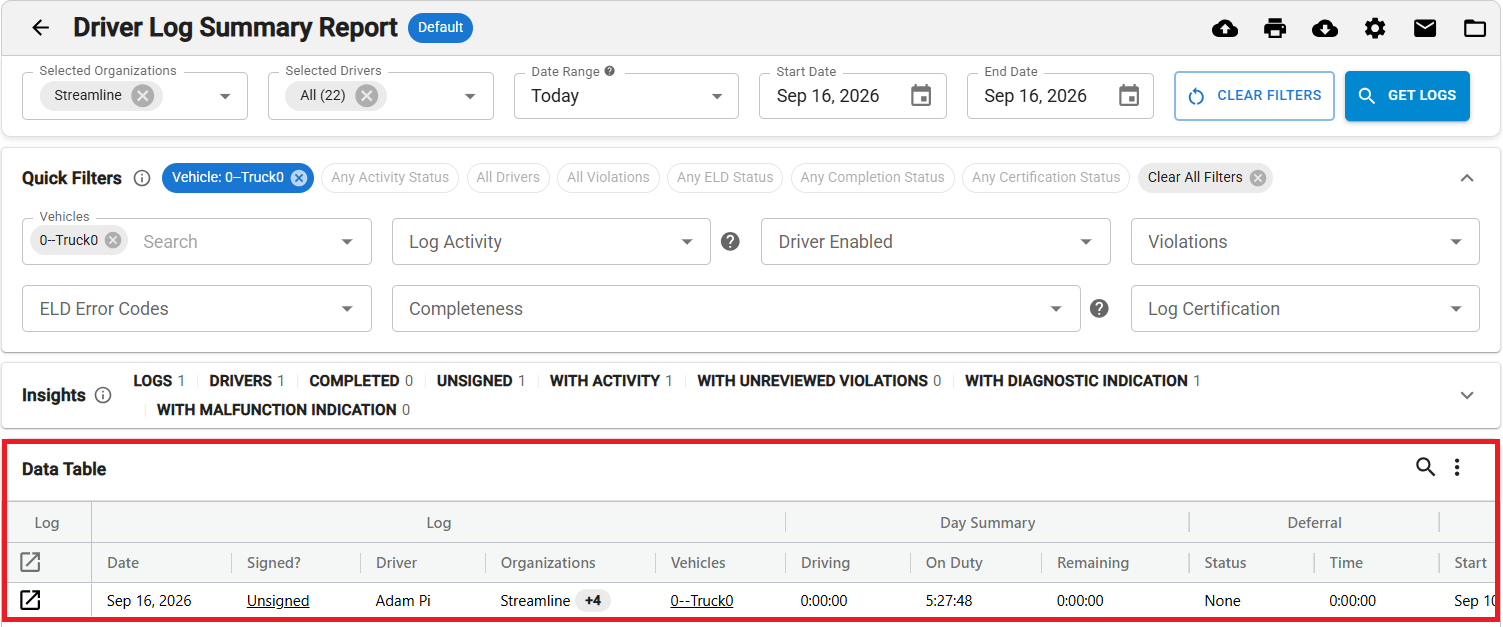
Once you have confirmed that these are the logs you are interested in, select the Data Transfer icon in the upper right of the screen.
This will give you the options to send the Data Transfer in one of the following forms. For each form, it is optional that you include a comment, and if there is more than one driver listed after filtering, the Data transfer will indicate Data Transfer (Visible Rows) as opposed to Data Transfer Driver Name.
General Purpose
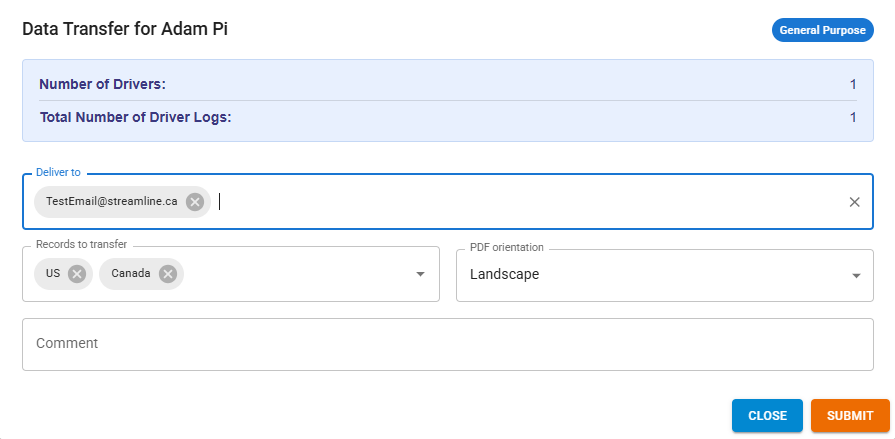
For sending the data to one or more recipients. Additional emails can be added to the Deliver to field.
The Records to transfer define the format that the data will be sent in. The format options available are US and Canada.
US Audit
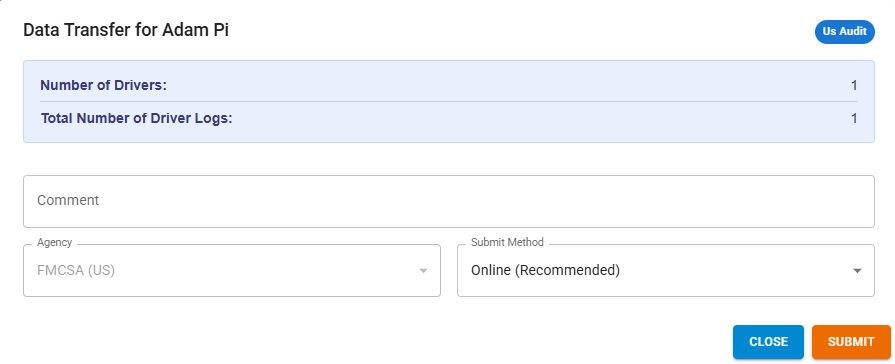
For sending the data to the US Auditing Agency
There are two Submit Methods to choose from:
Online (Recommended)
Email (Use only when the online method has downtime)
Canada Audit
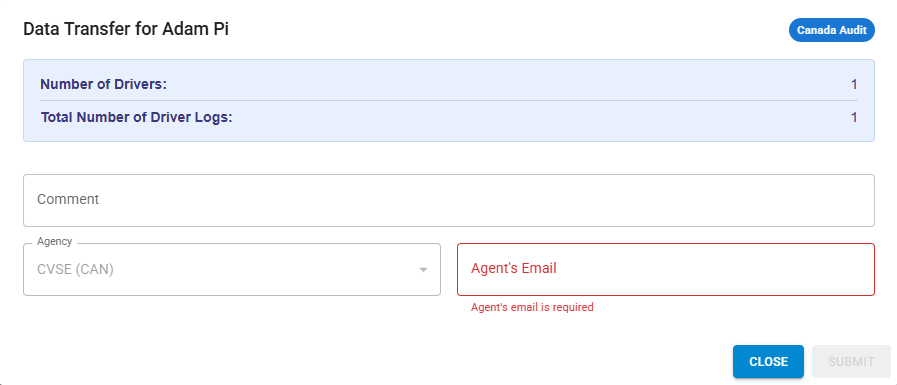
For sending the data to the Canadian Auditing Agency
Here you will need to enter the Agent’s email.
Once the required information is filled out, click on SUBMIT to send it.
If you have any questions regarding how to do a data transfer through the Navistream web portal, please contact Navistream Support.
Navistream Support
1(844)571-8200 Ext 2