
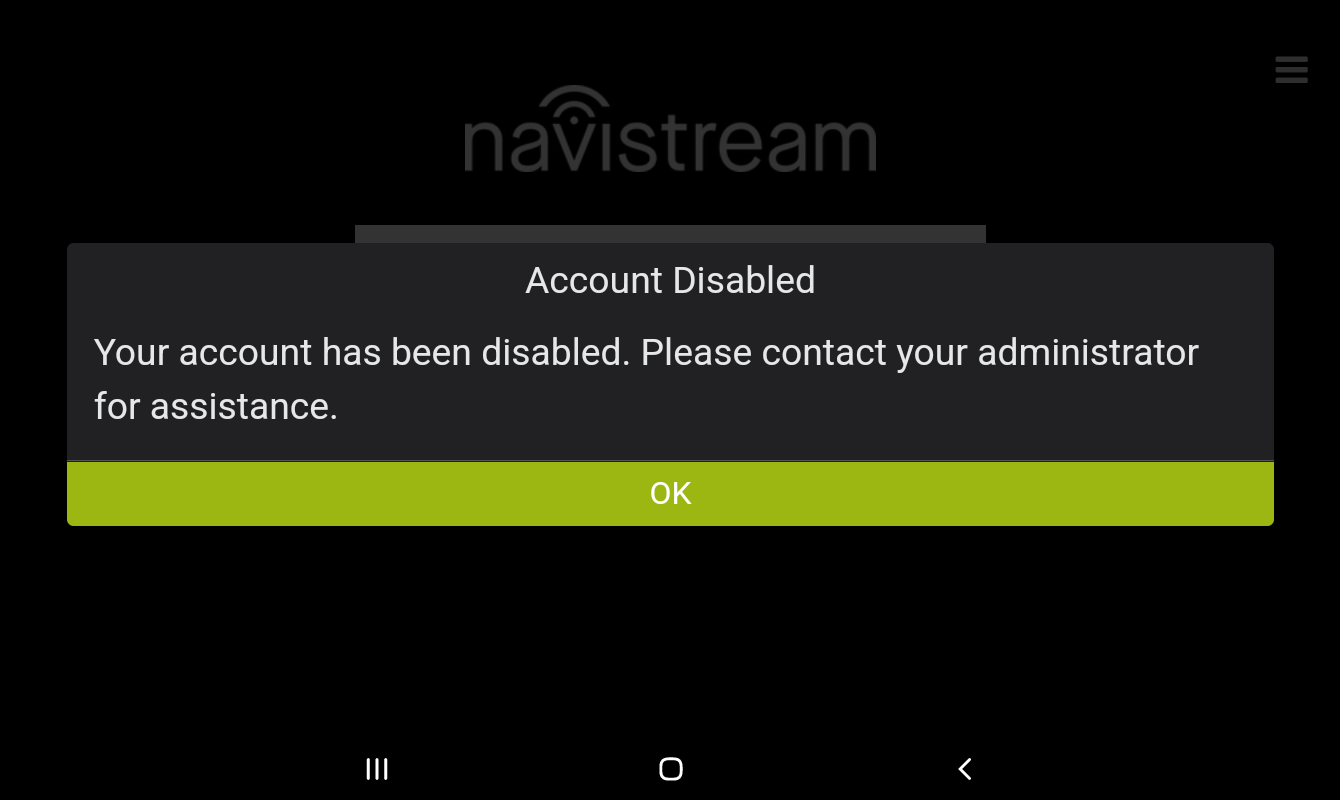
On the Navistream Web Portal, there is the option to either Enable or Disable a Driver's account. While a driver’s account is Enabled, the driver will be able to log into and use the tablet. If the driver's account has been Disabled, they will see the following message on the tablet upon attempting to sign in.
To edit a driver's user account in this way, please follow the steps below:
Sign into mynavistream.com and go to the ADMINISTRATION tab.
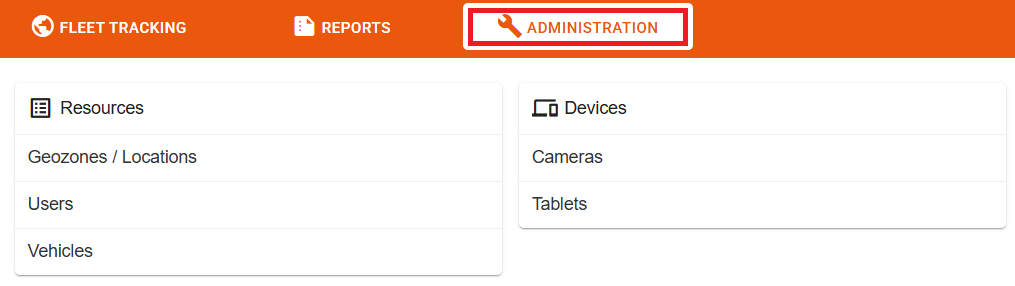
Next select Users.
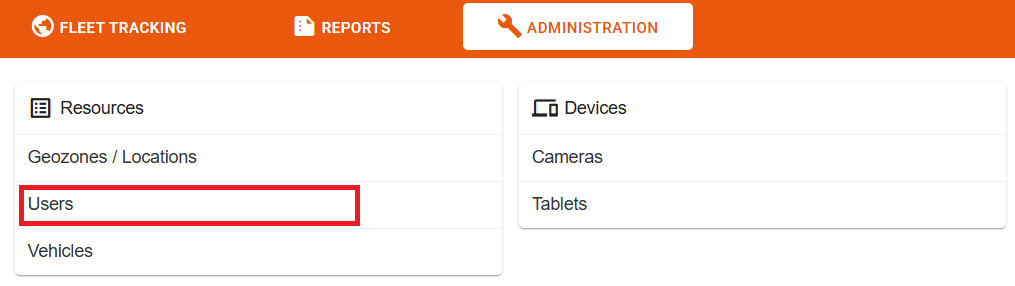
This will take you to the Users page. Here you have two locations where you can access and edit the Driver. You can filter the Users page to show only drivers using the ‘Show Only Drivers’ toggle.

Option One, on the Users page, click the edit option to the right of the Driver’s Username.

Option Two, click on the Driver’s Username. This will take you to the View Driver page.
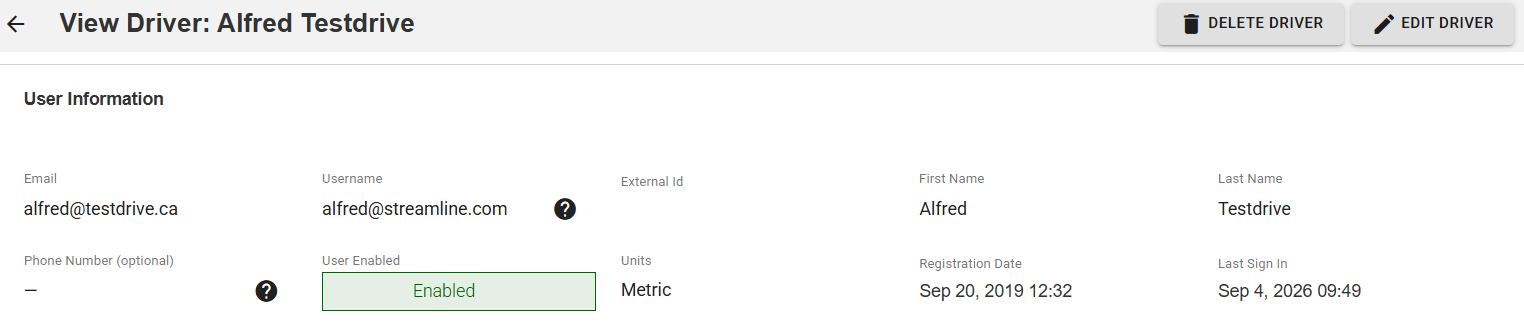
Once on this page, click on the EDIT DRIVER option.
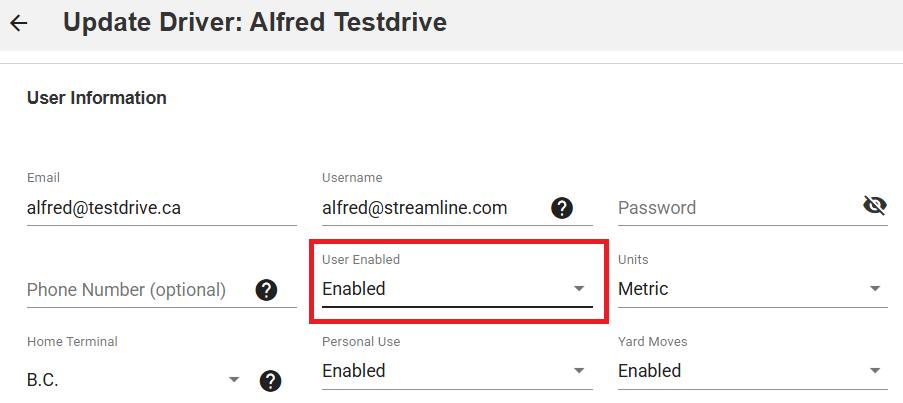
Both options take you to the Update Driver page where you can edit the User Enabled option to either Enabled, or Disabled, and click on SAVE CHANGES. The option to CANCEL EDIT is also available. Once you save the changes the Driver's account will now be disabled.
If you have any questions regarding how to Enable or Disable a Driver account, please contact Navistream Support.
Navistream Support
1(844)571-8200
Ext 2