
While a driver is completing a Fueling Activity, the default options they see reflect how the vehicle is configured on Navistream. For example, if you are seeing Gallons of Gas and believe this is incorrect, you should either log into Navistream using a Support User with Administrator role, or speak with your administrator, to confirm the correct fuel type has been selected for your vehicle.
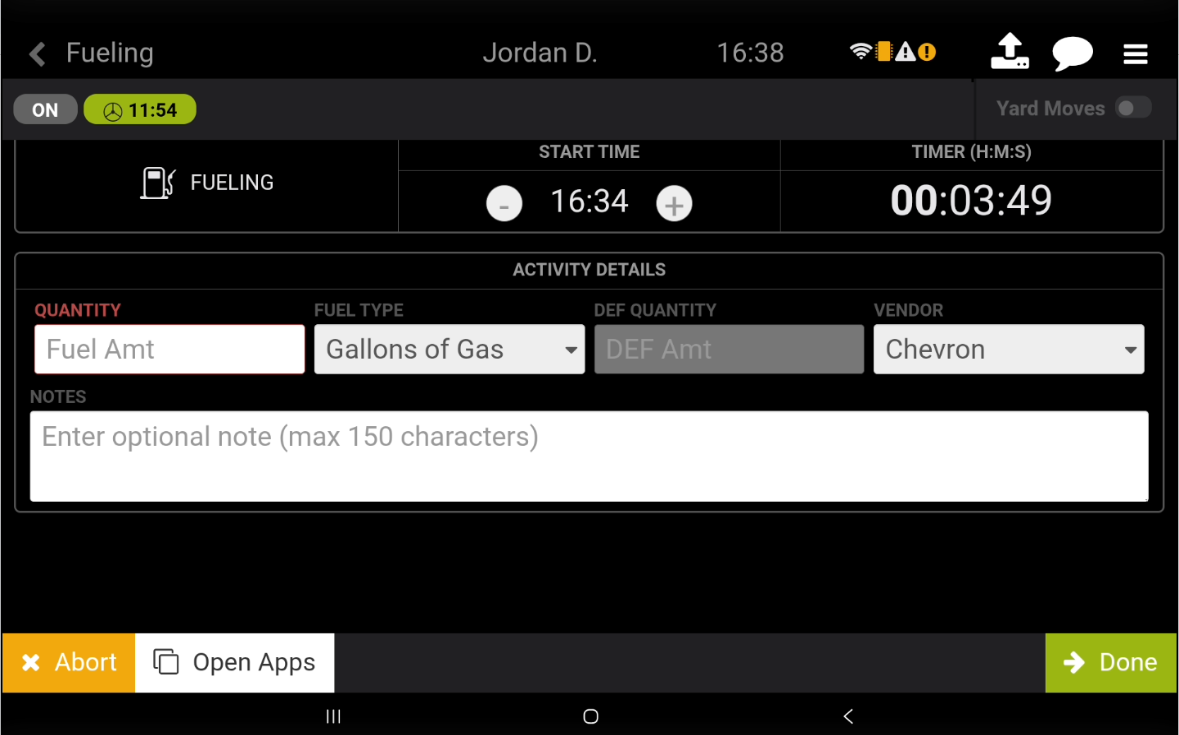
To resolve this follow these steps:
Log in to mynavistream.com with an Administrator role.
Go to
 then select Vehicles
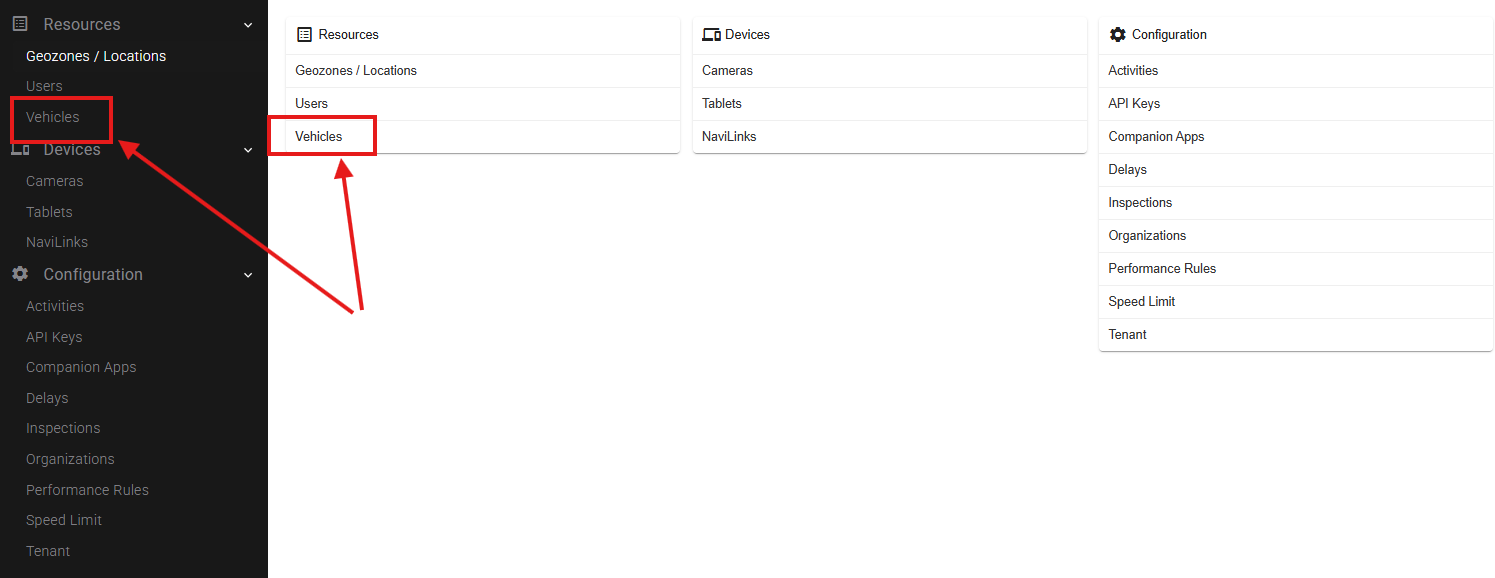
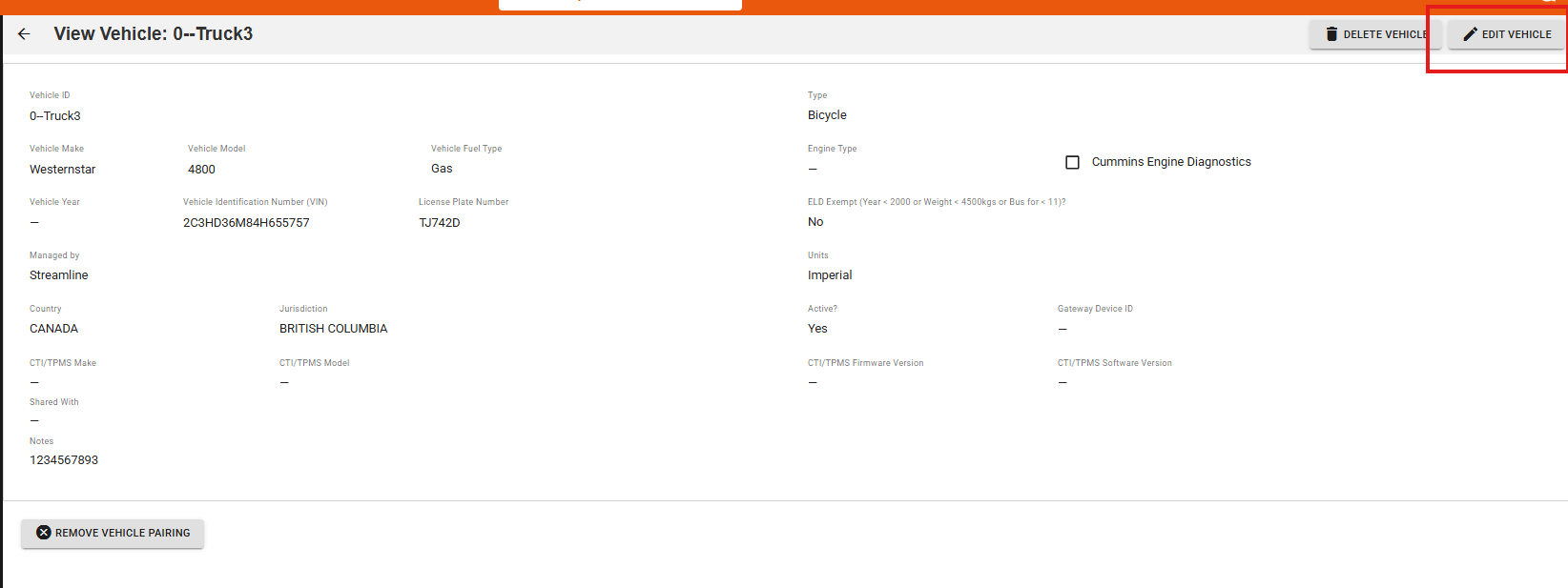
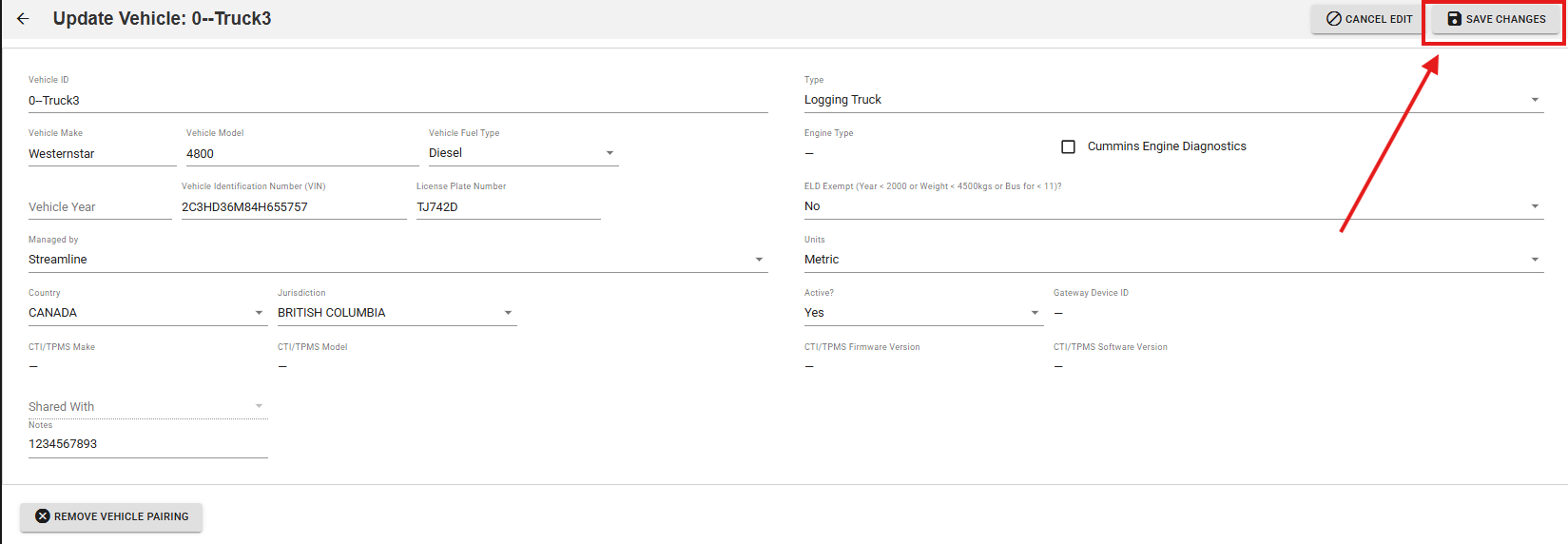
Find the vehicle showing the incorrect Fuel Type
Select the vehicle and click Edit Vehicle
Change either the Fuel Type or the Units (or both)
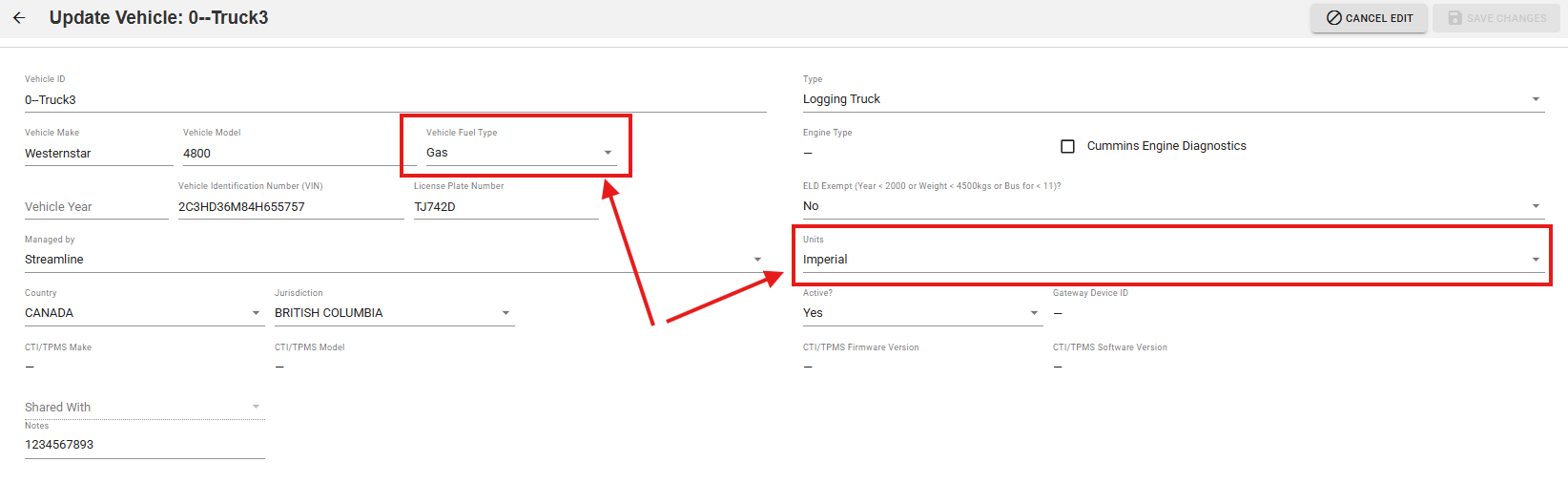
Select Save Changes
Have the Driver logout or restart the tablet for the changes to come into effect. In the screenshot below the Fuel Type and Measurements has changed from Gallons of Gas to Litres of Diesel.
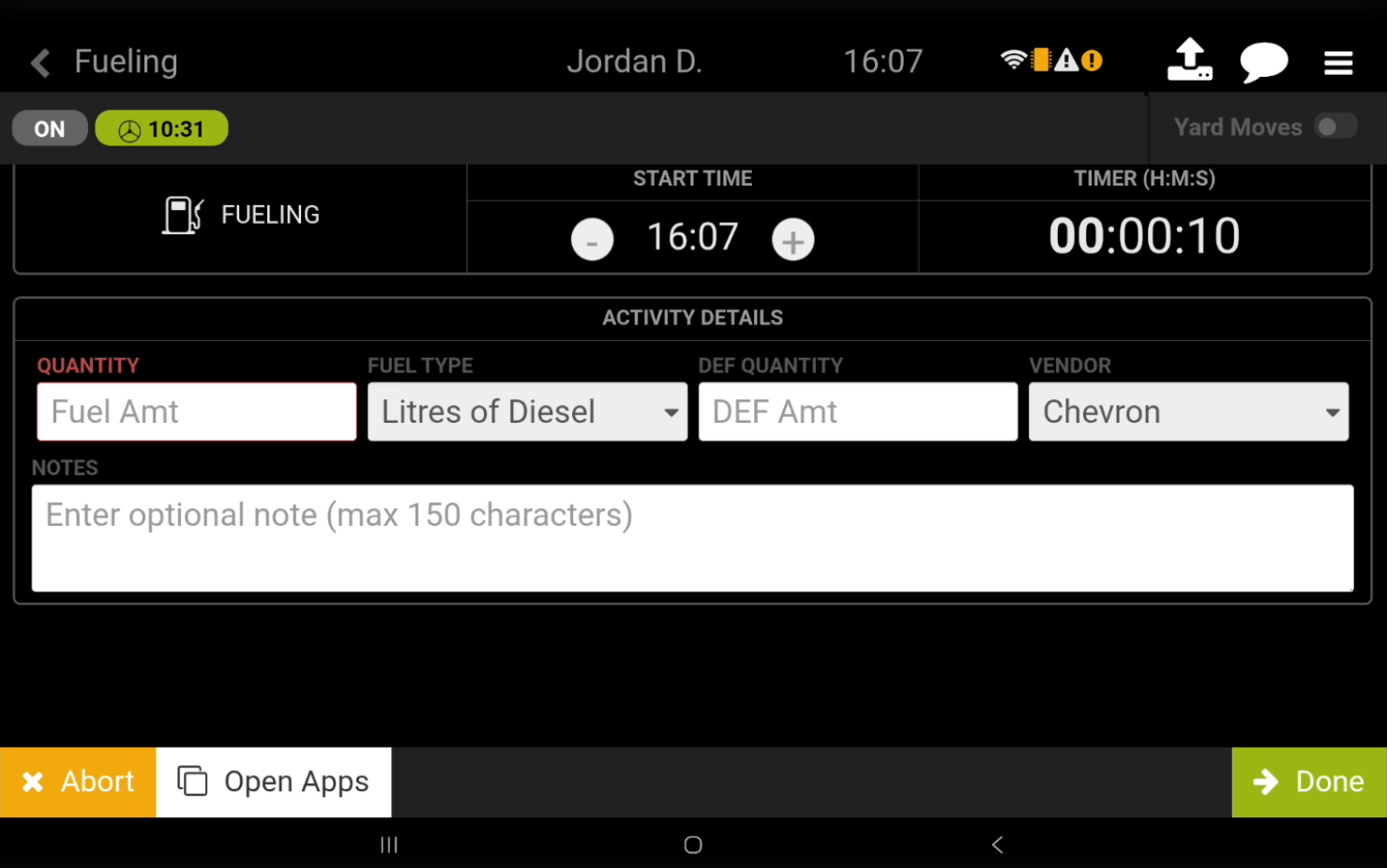
Completing these steps should resolve the driver seeing the incorrect Fuel Type or Units during the Fueling Activity. If the Fuel Type or Units are still showing incorrect after updating the Vehicle on Navistream, please reach out to Navistream Support.
Navistream Support
1(844)571-8200 Ext 2
navistream@stti.ca