
We are pleased to introduce the new Defects Summary Report. This feature enables users with Super Admin, Manager, Dispatch, or Mechanic access to view, manage, and export detailed vehicle defect history over custom time periods, or transfer the data via email.
To access the report, sign in at mynavistream.com, navigate to the REPORTS tab, and look under the Inspections list to locate Defects Summary NEW. You can also access it directly from the left-hand navigation menu under Inspections.
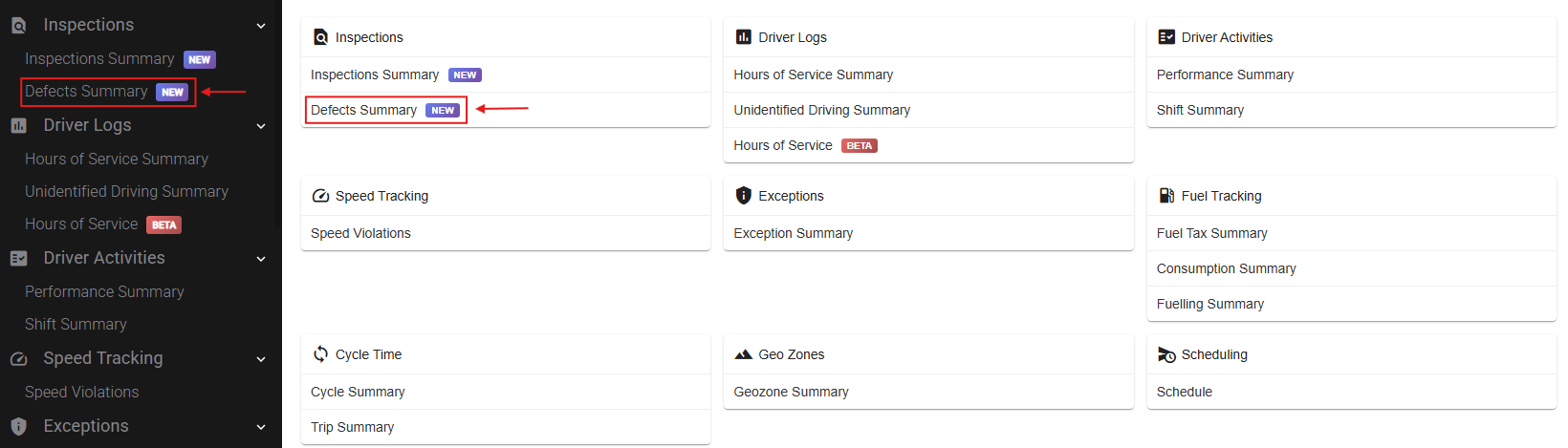
The report provides a consolidated view of each vehicle defect from the time it is identified until it is marked as repaired.
Tracking Defects Across Inspections
When a driver submits an inspection reporting a defect:
Navistream creates a defect record connected to the vehicle and initial inspection.
The defect remains visible on the initial inspection and any subsequent inspections while active (in Unrepaired status).
Each occurrence is linked to the same defect record.
The defect is displayed in the Defect Summary until it is marked as repaired.
This approach maintains a complete lifecycle for each defect, preventing duplicate records across multiple driver inspections.
Updating Repair Status
Defects can be marked as repaired from several locations:
The Navistream Driver App during an inspection
An Inspection Detail Report (Inspections Summary)
The Defect Summary Report
Regardless of where a repair is logged, the updated status automatically synchronizes across all of Navistream, including the initial inspection, associated subsequent inspections, and the Defect Summary Report.
Once repaired, the defect is no longer considered active, but its inspection history, notes and repair status remains available for reference.
Adding Inspection And Defect Notes
Users can add notes at two different levels:
Inspection Notes: Specific to an individual inspection instance and visible only within that Inspection Detail. This tool is only accessible via the Inspection Detail Report on the Navistream web portal, or the Inspection function on the Navistream Driver App. Please refer to this article for more information about the web portal's Inspection Detail Report, and this article about the Driver App's Inspection function.
Defect Notes: Attached directly to the defect record. These notes are visible, and carried forward across all related inspections, and also appear in the Defect Summary Report.
This separation allows users to keep routine inspection remarks separate from a defect record's ongoing repair and troubleshooting history.
Complete Lifecycle of A Defect
By consolidating data into a single continuous record, the Defect Summary Report allows you to:
Identify active vehicle defects
Review when and where defects were reported
Track defects across multiple inspections
Maintain defect-specific notes
Record and confirm repairs
Review the complete history of resolved defects
This end-to-end visibility ensures streamlined and reliable tracking from defect discovery to resolution.
Report Structure
The report is divided into four primary sections:
Query
Quick Filters
Insights
Data Table
1. Query
Use this section to select Organizations, Vehicles, Based On criteria, Date ranges, or Start and End Dates. After configuring your query, click Get Defects to generate data in the table below.

The Based On dropdown configures how the Date Range is applied:
Reported Date: Retrieves data based on when the defect was initially reported.
Repaired Date: Retrieves data based on when the defect repair was recorded.
Active Date(s): Retrieves defects that currently hold an active status.
Note: Query changes do not refresh the results automatically. You must click Get Defects to update the Data Table and the Insights sections.
2. Quick Filters
Quick Filters allow you to refine the queried dataset in real time without reloading the page:
Vehicle Status: Filter by 'Active', 'Inactive', or 'All'. 'Active' is selected by default.
Severity: Filter by 'Minor', 'Major', or ‘All’.
Repaired Status: Filter by "Repaired", "Unrepaired", or "All".
System / Component: Filter by specific vehicle systems or components across your organization’s entire inspection pool. Multiple items can be selected.
Minimum Days Defective: Specify the minimum number of days a vehicle has had an open defect.
Reported By: Filter by the driver(s) who reported the defect. Multiple drivers can be selected.
Repaired By: Filter by the user (Driver, Dispatch, Manager, Mechanic, or Super Admin) who marked the defect as repaired.
Repaired On: Filter by the specific date the defect was marked as repaired.

Adjusting Quick Filters instantly updates both the Data Table and Insights section.
3. Insights
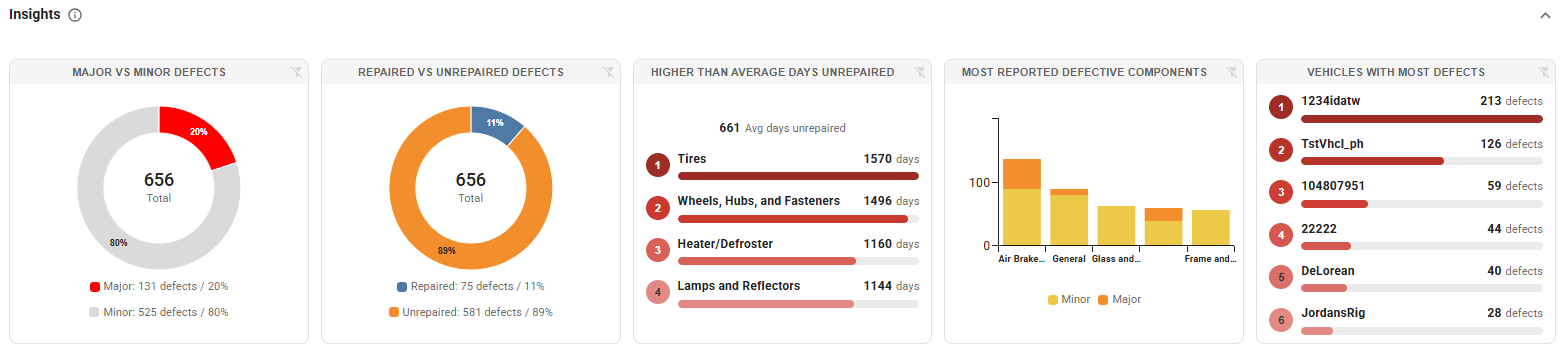
The Insights section provides visual analytics for your queried defects, highlighting common component failures, severity breakdowns, vehicles requiring the most maintenance attention, components with higher-than-average unrepaired days, and repair status comparisons.
4. Data Table
The Data Table displays up to 13 defect records per page. Use the navigation arrows at the bottom right to move between pages. Columns can be sorted in ascending or descending order by clicking their headers (e.g., sorting by Vehicle or Date).
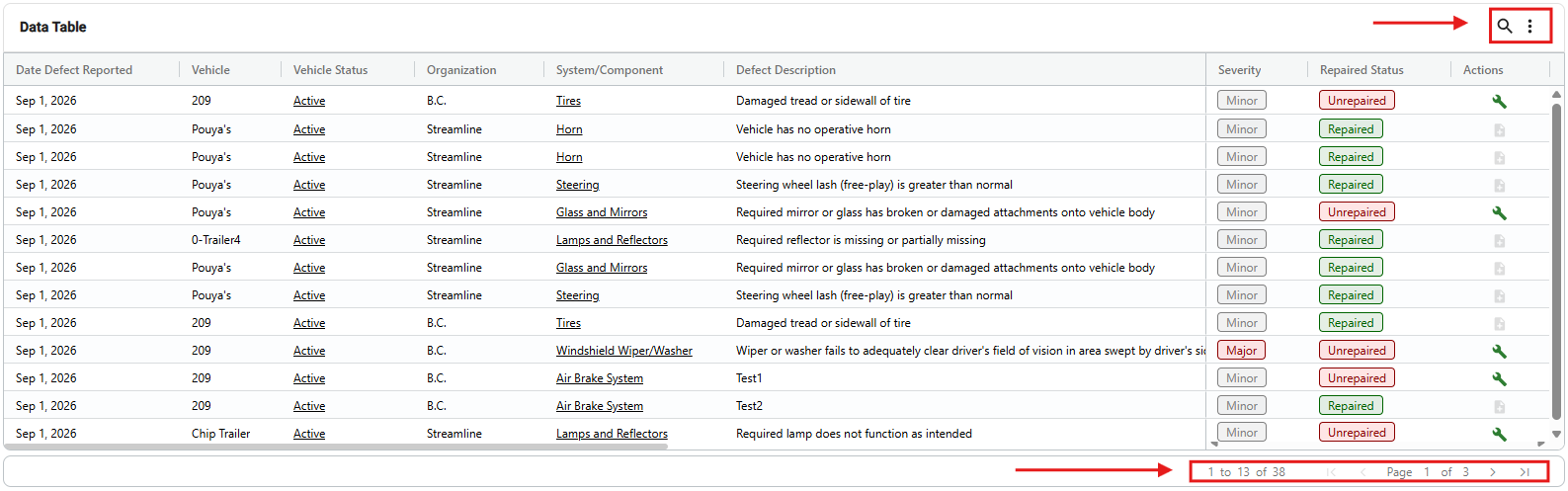
Click the magnifying glass icon in the upper-right corner to search for specific data within the table.
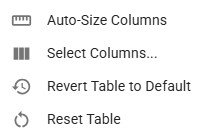
Click the three-dot icon in the upper-right corner to customize table settings, such as choosing displayed columns or resetting the view.
To mark a defect as repaired directly from the report, click the Wrench icon in the Actions column.
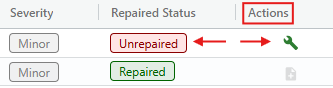
When prompted, enter optional repair notes and click Confirm to save your changes.
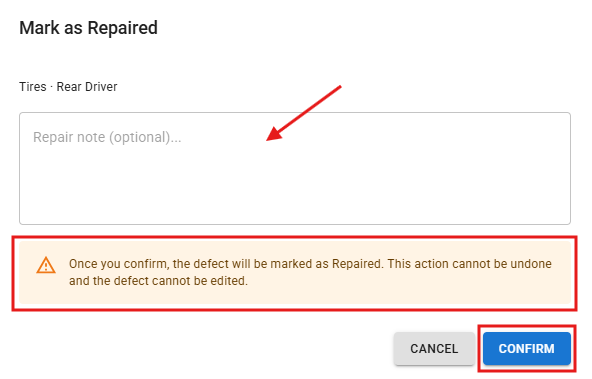
Important: A defect can only be marked as repaired once. This action cannot be undone, and repair notes cannot be edited after confirmation.
If you have any questions or issues with the Defect Summary Report, please contact Navistream Support.
Navistream Support
1(844)571-8200 EXT 2
navistream@stti.ca