
The Performance Report is a report where you are able to view a driver's performance over their shift from either the Default Ruleset or a custom ruleset you have created. This report is created from the engine data that is collected from the vehicle
You can access this report by clicking on the "Reports" section at the top of the web page and selecting the Performance Summary report.
Performance Summary Report
The Performance Summary report offers comprehensive filtering, and the ability to set a variable date range.
Below is a brief guide of how this report works and the features within:
Query:
In this section you may refine your search by Organization, date range.
Performance Filters:
This drop down bar is located just below the query search bar. In here, you can use the drop-down menus to quickly filter the results of your current query by drivers, vehicles and/or 'Show records with no activity' toggle.
Driver:
Show shifts from only a specific driver or drivers.
Vehicle:
Show shifts using only a specific vehicle or vehicles
Show records with no activity:
Allows you to remove records for which there is no activity.
Hide Shift Durations less than
Allows you to remove records that are less than a entered number of hours
Performance Summary Report
The data table below will populate based on the criteria selected in the Query and Performance Filters sections. The columns are grouped into the categories of Information, Engine, Excessive Speed, Excessive RPM, Harsh Braking, Idling, and Points.
To see the data for the Information category, you will need to click the drop down arrow to the left of the date in the Group column, on the far left of the table. This will also split up the selected row into its component values that are used to calculate that rows sum and average values.
Performance Detail Report
Performance Detail Report (Pop-Out) 
To access this report you will need to click the drop down arrow to the left of the date in the Group column, on the
Performance Summary Report, then clicking this button 
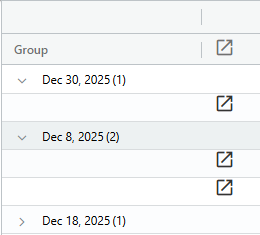
This will take you to the Performance Detail Report. Here you can see the Aggregate information.
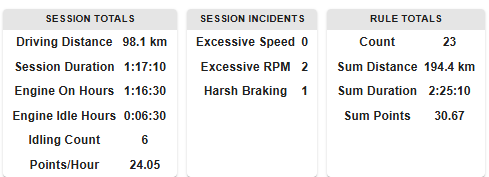
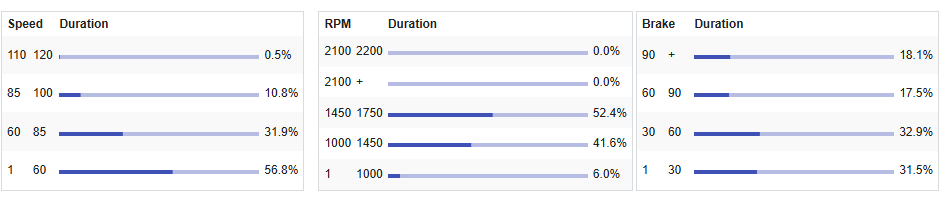
Below the Aggregate information you will see the Driving Profile for the driver on that given day.
The specific ranges for the Speed, RPM, and Brake are shown to the left and the percentage of drive time spent in each of those ranges can be seen on the right.
Below the Driving Profile is the Data Table. This is a breakdown of the Performance rules as they have been applied to the driver during their shift.
Description:
The description of a particular rule
Count:
How many times the driver triggered a rule over the shift
Distance:
How far in total the driver drove while a rule was triggered
Duration:
The total time spent while a rule was triggered, in HH:MM:SS
Points:
A total point value to a rule over the shift.