
Under NSC standard 13, Drivers must conduct a physical inspection and complete a written or electronic "Trip Inspection Report" every 24 hours, regardless of whether they find a defect. They also must possess a copy of the specific inspection "schedule" (the checklist framework) and the signed daily report inside the truck to show an officer.
The Navistream application streamlines the daily inspection (DVIR) process, and enables drivers to email their latest inspection report directly from a Navistream tablet.
To email the latest Inspection report from a Navistream tablet:
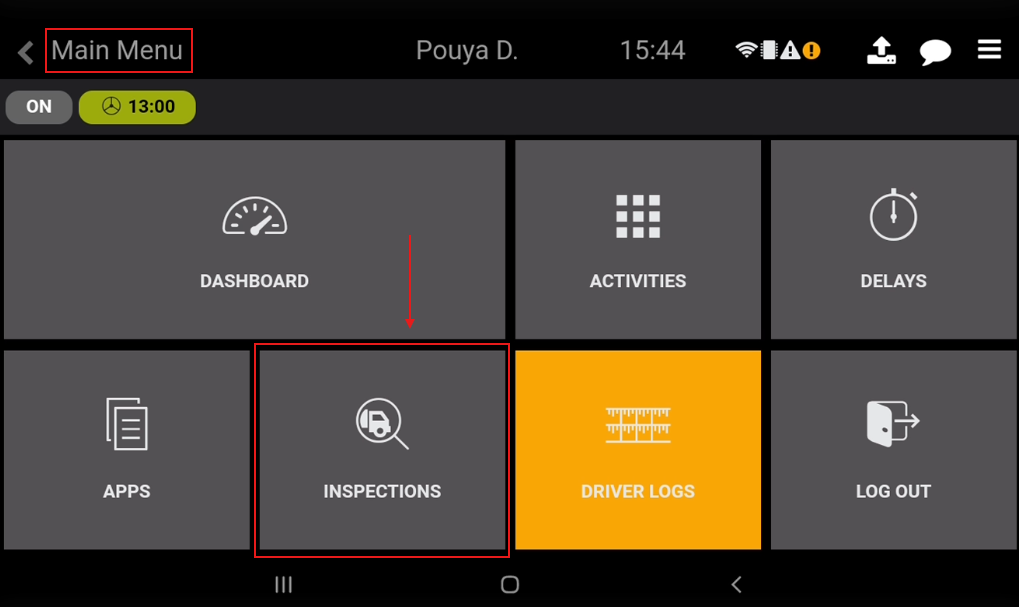
From the Main Menu screen, tap on the “Inspection” tile.
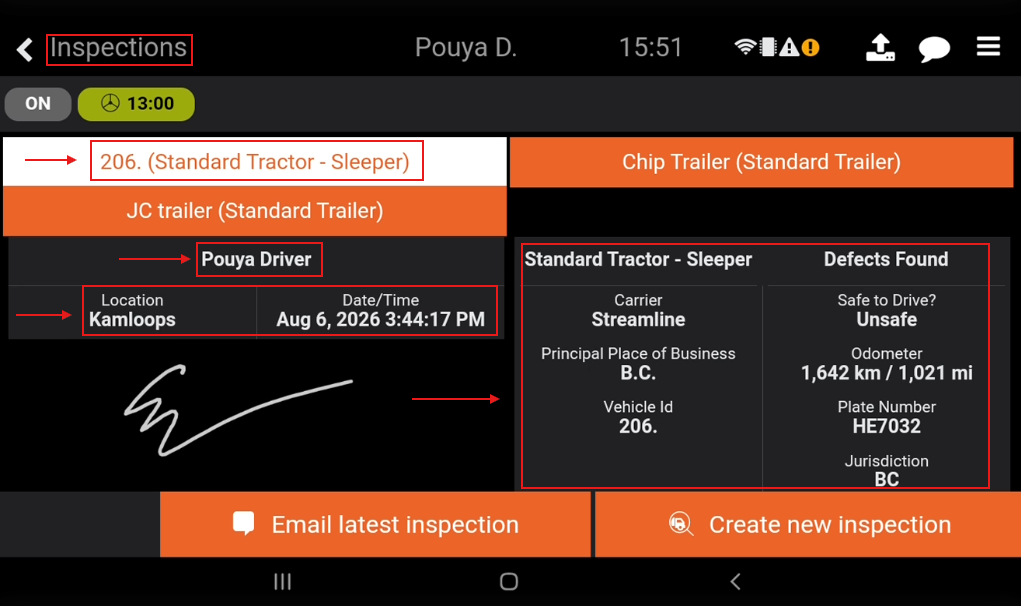
From the Inspection screen, you can review, and find all the important information (Driver information, Vehicle Information, Location, Date, etc.) from the latest inspection for the vehicle, and any trailers that are attached.
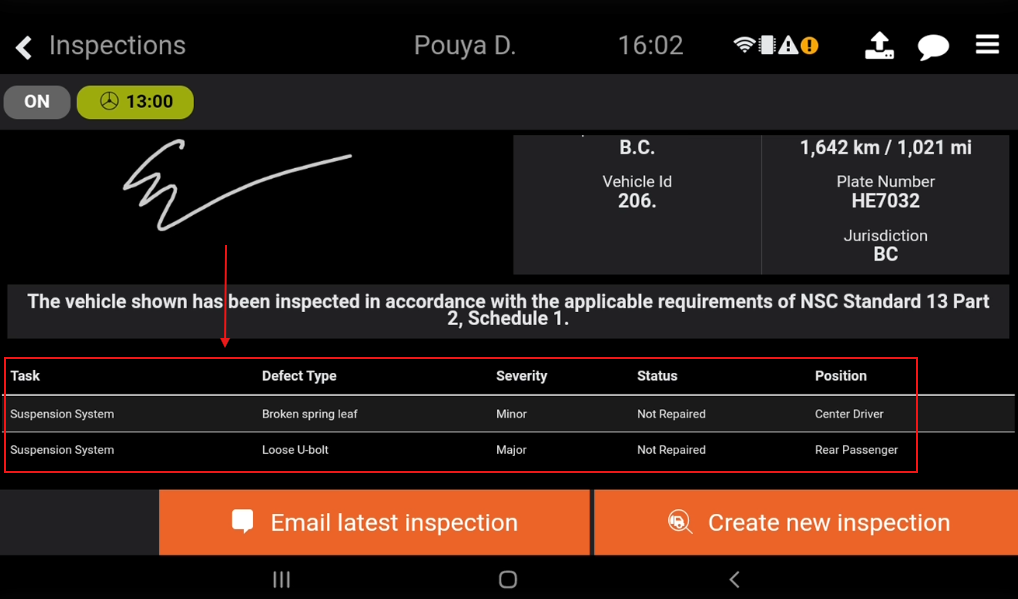
Note that the summary of the vehicle’s defects will be displayed at the bottom of the Inspections screen. Simply scroll down to reach it.
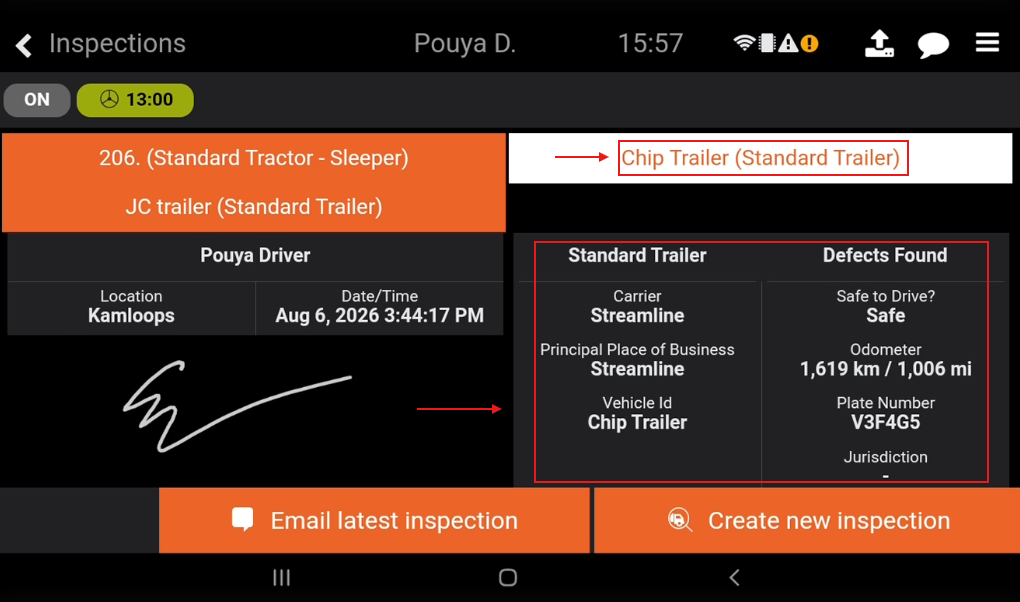
Note that you have the ability to toggle between your Tractor, and Trailers' (If any attached) information sheet by tapping on their name. The selected vehicle’s name box will appear in white.
To email the Inspection for all Vehicles, simply tap on the orange tile “Email Latest Inspection” located at the bottom of your screen.
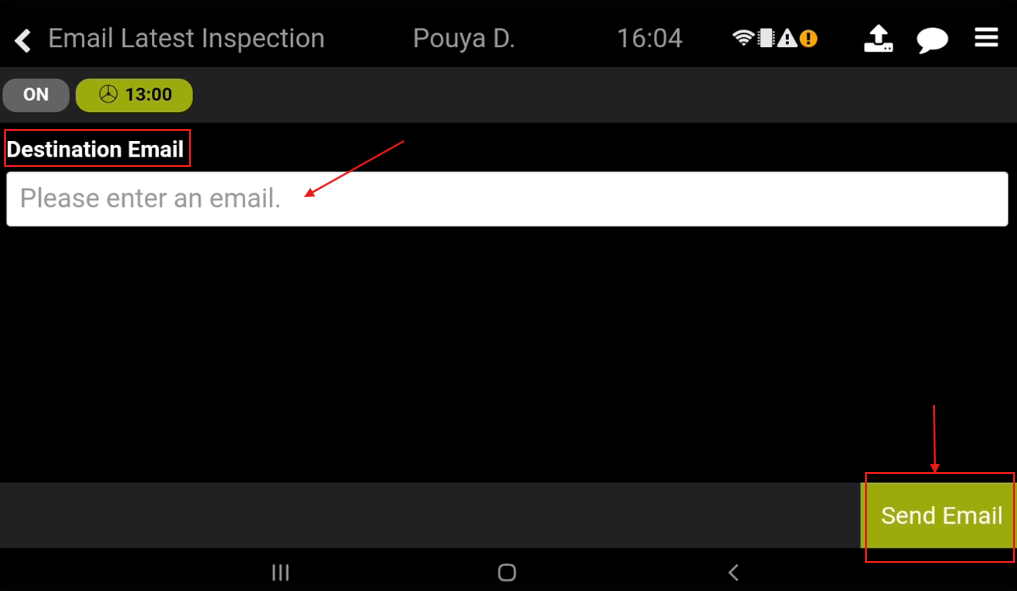
Enter your destination email address in the box, and tap on “Send Email” when ready.
Upon successful completion, a “Transfer Success” banner will be shown on the top of your screen.

Tap on the Back button
 until you reach the Main Menu again.
Note: A full list of all inspections for the vehicle and trailers can be found, exported, or emailed on mynavistream.com. Please refer to this article on How to Use the Inspection Summary Report.
If you have any questions or issues regarding how to email your latest Inspection Report using the Navistream tablet, please contact Navistream Support.
Navistream Support
1(844)571-8200 EXT 2
navistream@stti.ca