
Administrators can reset user passwords directly through the Mynavistream.com web portal. This feature enables administrator and super administrator users to manage user credentials, assist drivers who have forgotten their password or are locked out of their accounts, and ensure secure and uninterrupted access across the platform.
How to Reset a Password
Log in to Mynavistream.com as an Administrator or Super Administrator.
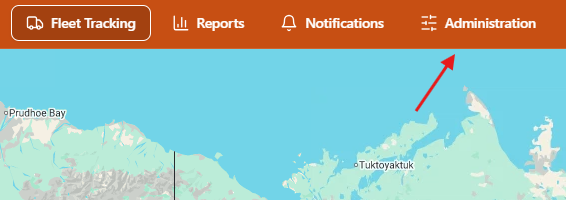
Navigate to the Administration panel.
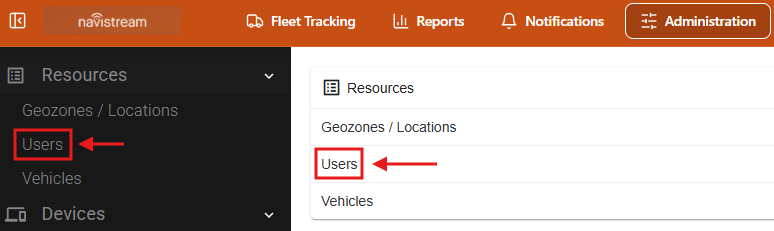
Select Users either from the left menu, or the middle of the screen.
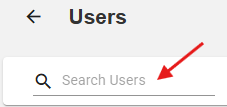
Locate the user by searching or scrolling through the user list.
Open the edit page for the target user by clicking the Pencil Icon
 on the far right of the row showing the user’s name, or clicking their email address and selecting Edit Driver / Edit Support User from the top-right corner of the screen.


Enter the new password in the Password field.

Click Save Changes in the top-right corner of the screen.

If you have any questions or issues with resetting passwords, please contact Navistream Support.
Navistream Support
Phone: 1(844)571-8200 EXT 2
Email: navistream@stti.ca